
User interface
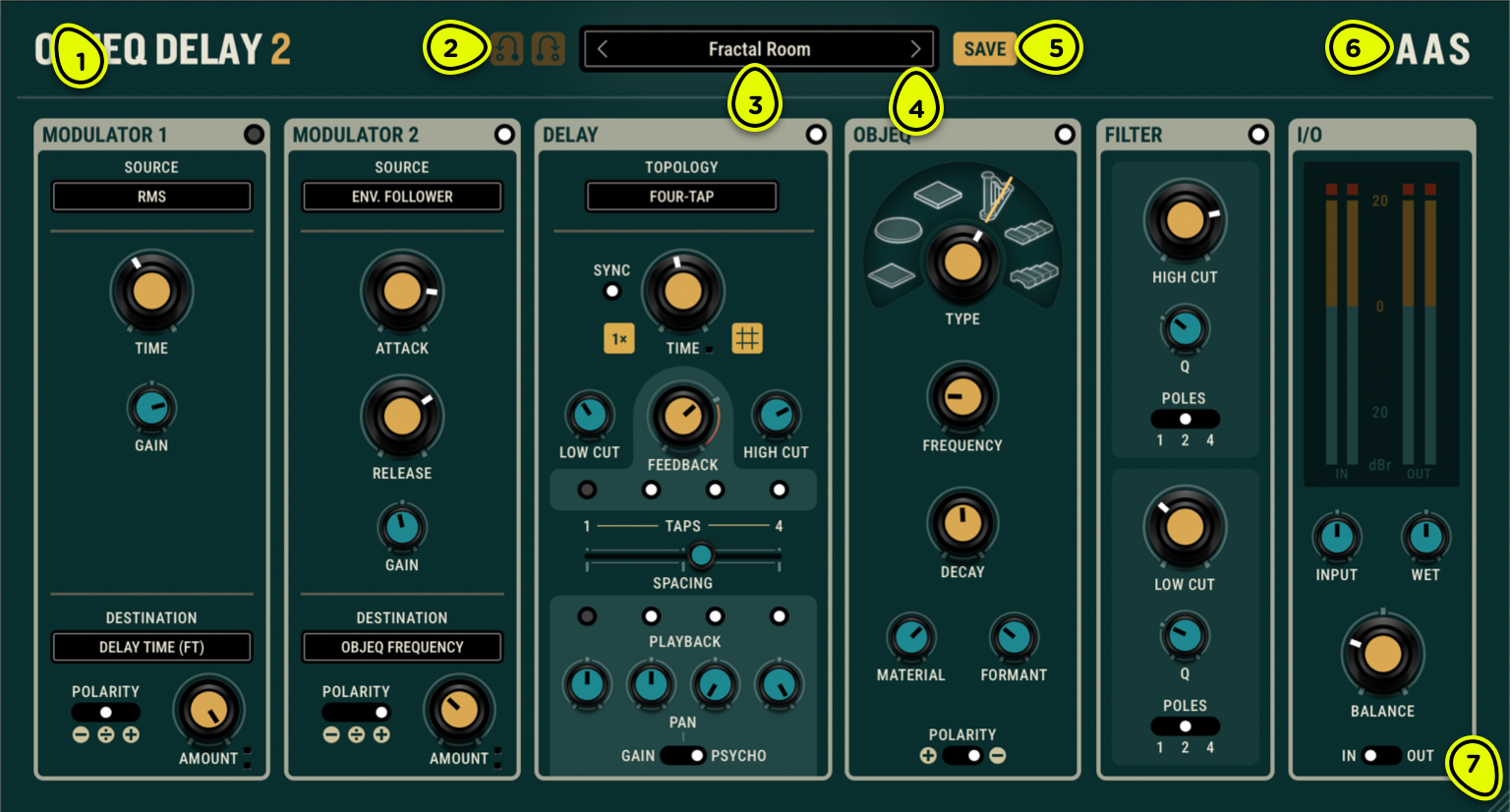
- Scaling menu Changes the size of the user interface.
- Undo/Redo buttons Steps forward and backward through the editing history, reversing or restoring any parameter adjustments and preset changes.
- Preset menu Displays the current preset's name and brings up the preset browser.
- Next Preset button Loads the next preset in the collection. The Previous Preset button (corresponding left-pointing chevron) does the opposite, it loads the previous preset in the collection.
- Save button Brings up the Save dialog to store the current state of the plug-in.
- AAS logo Brings up the About dialog which presents version numbers and registration information. Same with Objeq Delay 2 logo on the left.
- Resize handle Adjusts the size of the user interface by clicking and dragging.
Overview ⚓︎
Tools surrounding the main parameters of Objeq Delay 2 help navigate presets, save work, resize the interface, and access help resources when needed.
Save dialog ⚓︎
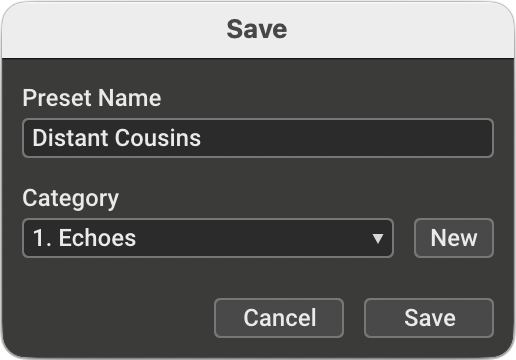
The Preset Name field accepts the user’s keyboard input for the name.
The Category menu presents the currently available categories. Selecting None will place presets directly into the user’s collection and will appear first in the Presets list.
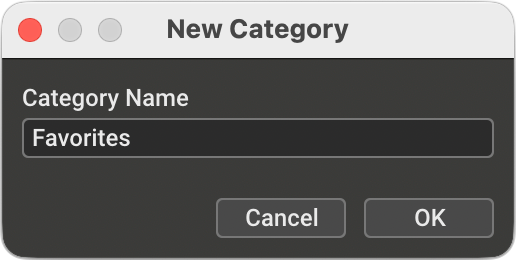
The New button opens the New Category dialog (below), which includes a keyboard input field for entering its name.
Preset browser ⚓︎
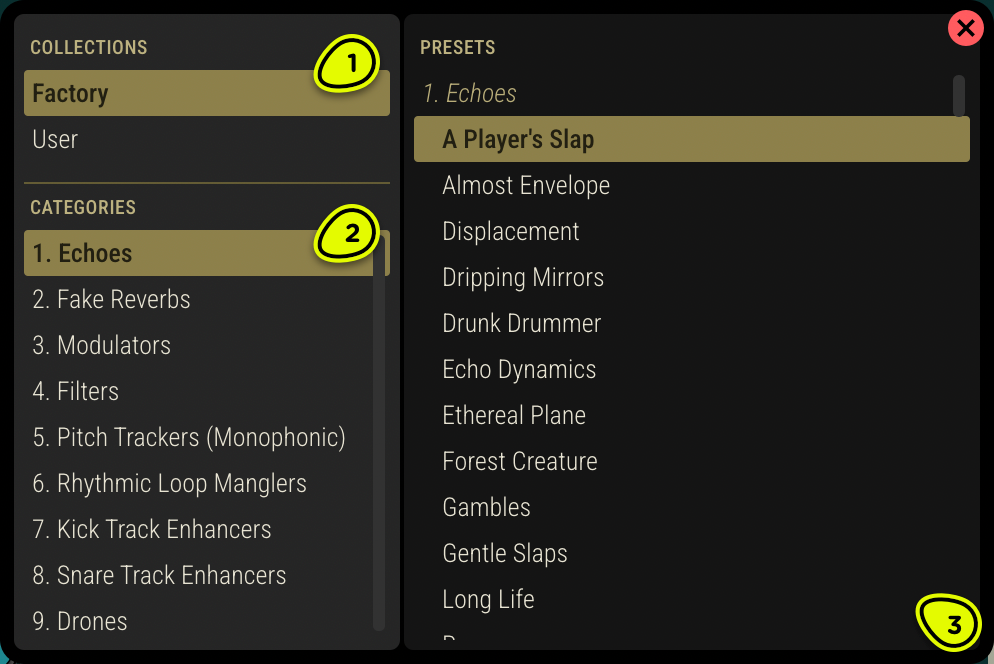
- Collections list Selects between Objeq Delay 2’s factory and the user’s collection of presets.
- Categories list Jumps to the selected category in the Presets list.
- Presets list Presents the available presets. Clicking on a preset loads it.
The Preset Browser organizes presets into collections and categories, allowing you to quickly find and load effects that match your creative needs.
The User collection is not stored in the same location as the Factory collections. Since the latter are stored in a read-only area of your computer, it may not be possible to rename, move, or add new presets in the Factory collection.
On disk, the preset categories are the first level of folders under the User collection. The preset browser only displays presets stored directly in a collection’s folder, or in one of its sub-folders. Deeper folder hierarchies are not supported. For example, in the following hierarchy that represents the User collection, the patch Hidden Echoes under Sub-Folder would not be visible:
- User
- Echoes visible category
- Deep Slaps visible preset
- Modulus visible preset
- Sub-Folder not visible
- Hidden Echoes not visible
You can use this to your advantage to hide unfinished patches that you don’t want to see in the browser but that you may wish to revisit later.
Renaming, moving, importing, and exporting presets ⚓︎
Objeq Delay 2 stores each preset in small file on disk. File operations, such as renaming, moving, and copying, take place in the platform’s file browser—the Finder on macOS and File Explorer on Windows.
To access a preset’s file, right-click (or control-click on macOS) on the preset or category name and choose Reveal in Finder (macOS) or Reveal in File Explorer (Windows).
Exporting a patch is done by sending a preset file by email, file-sharing service, or instant messaging to its intended recipient. Conversely, importing a preset is done by copying a file you received into a folder in your User collection.