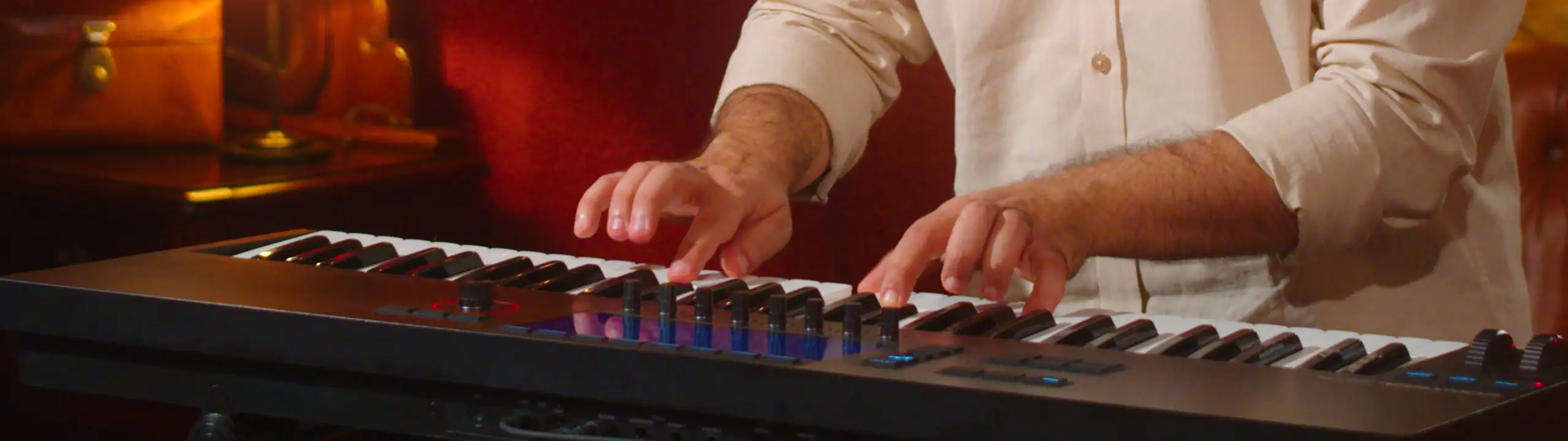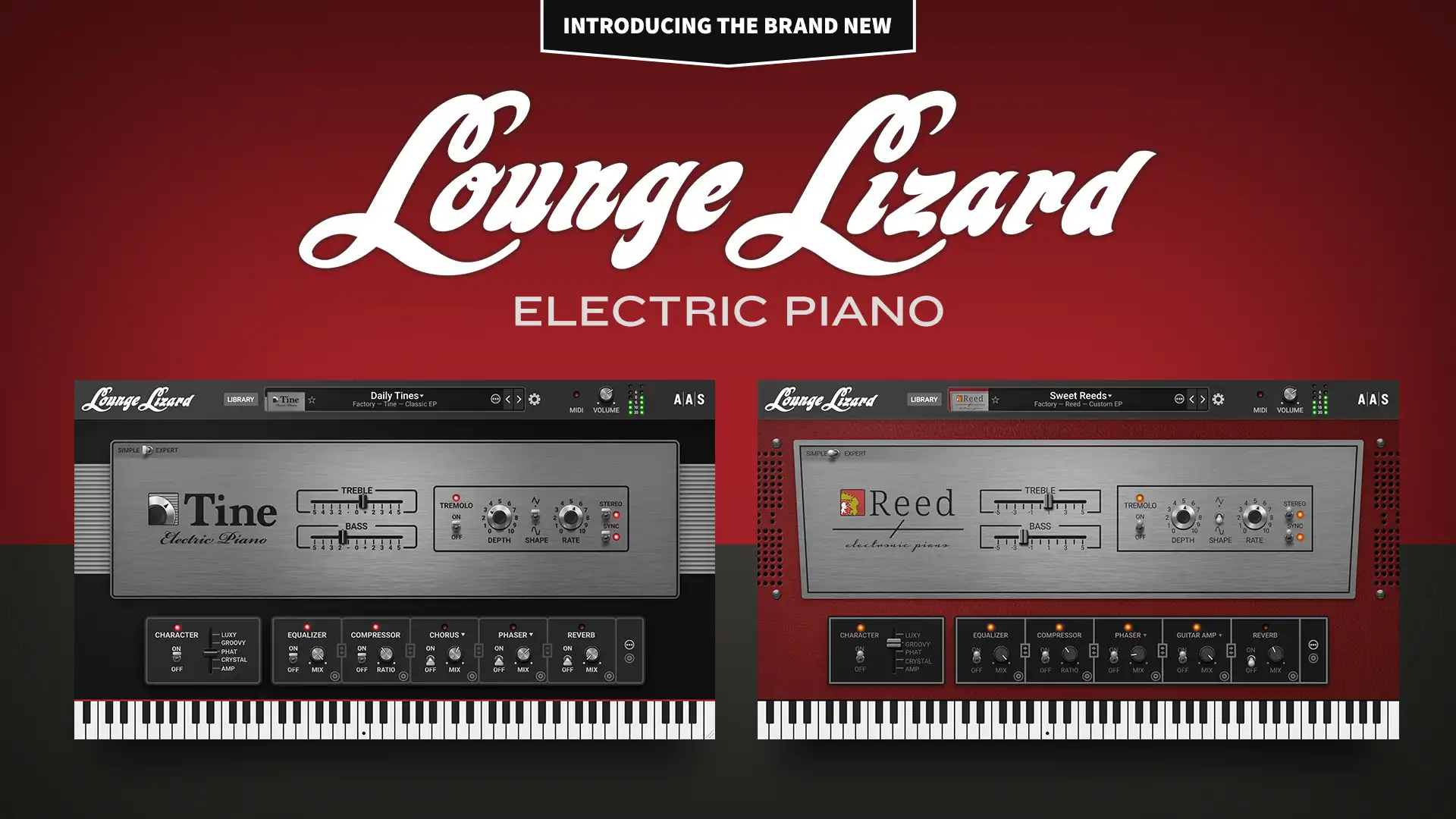
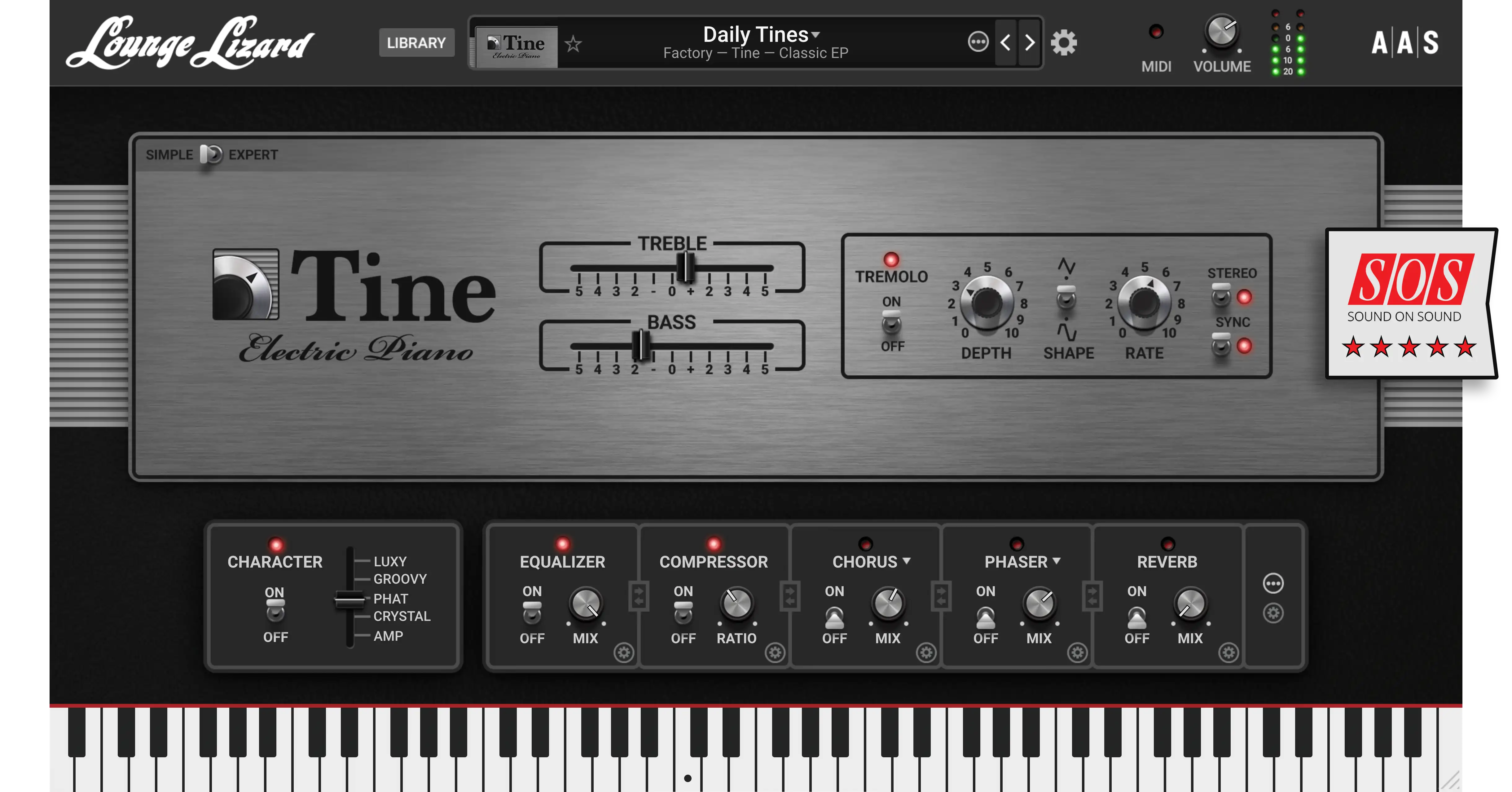
Lounge Lizard EP‑5 delivers the rich, expressive sound of classic electric pianos—beautifully packaged with everything you need to shape, play, and perform.
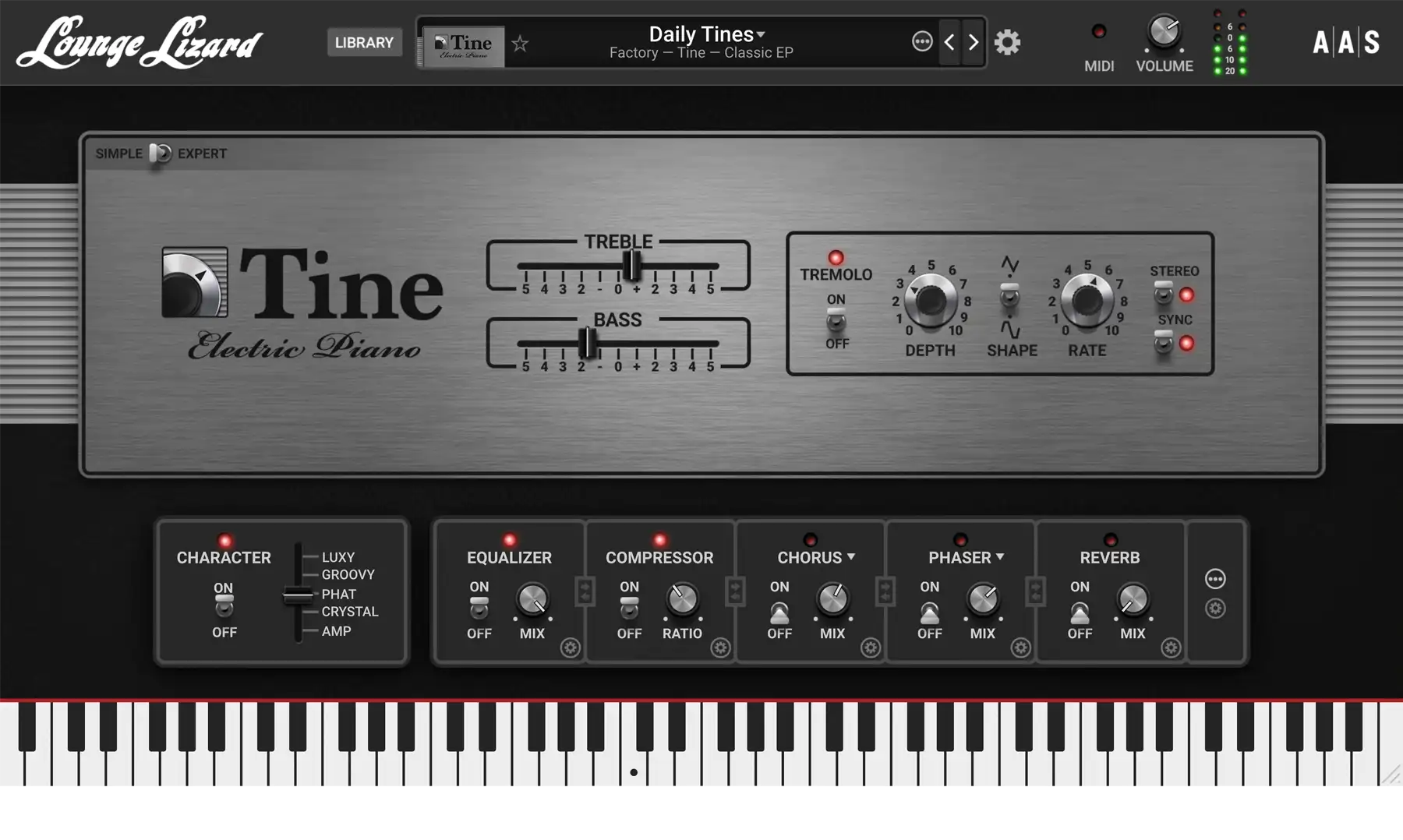
synth only
390+ professionally crafted presets
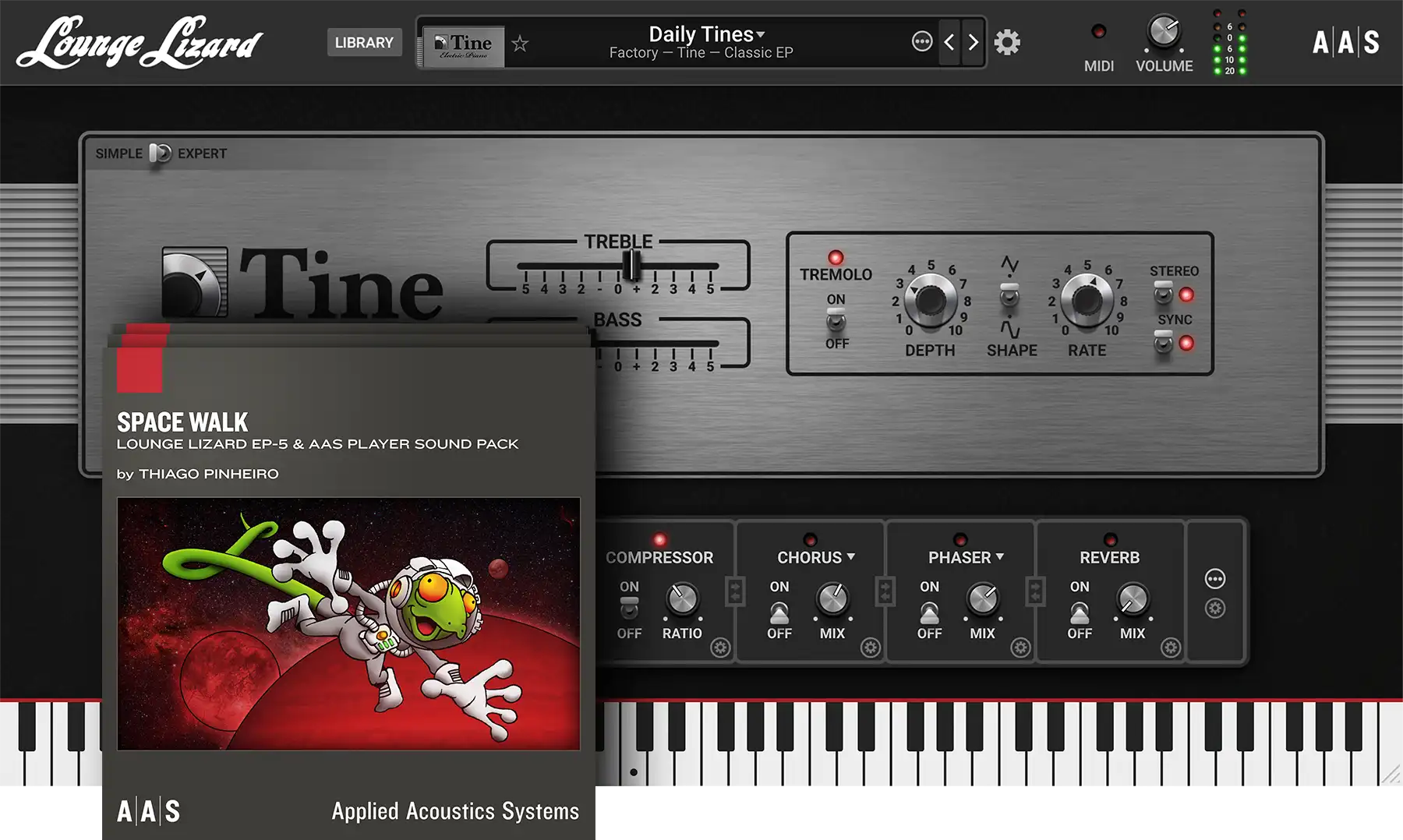
Synth + sound packs bundle
720+ professionally crafted presets
Don’t miss out on anything!
Here are the main features you get when upgrading to Lounge Lizard EP‑5
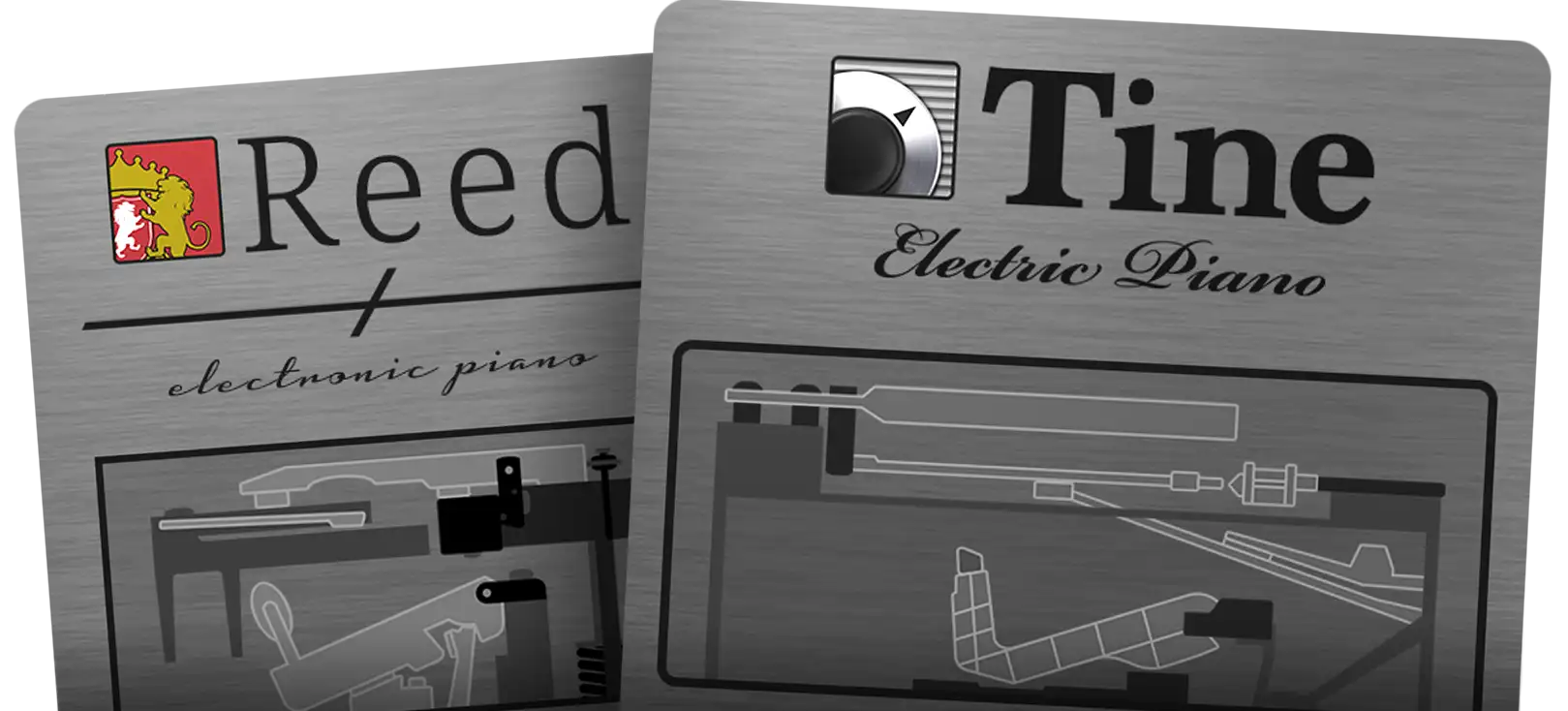
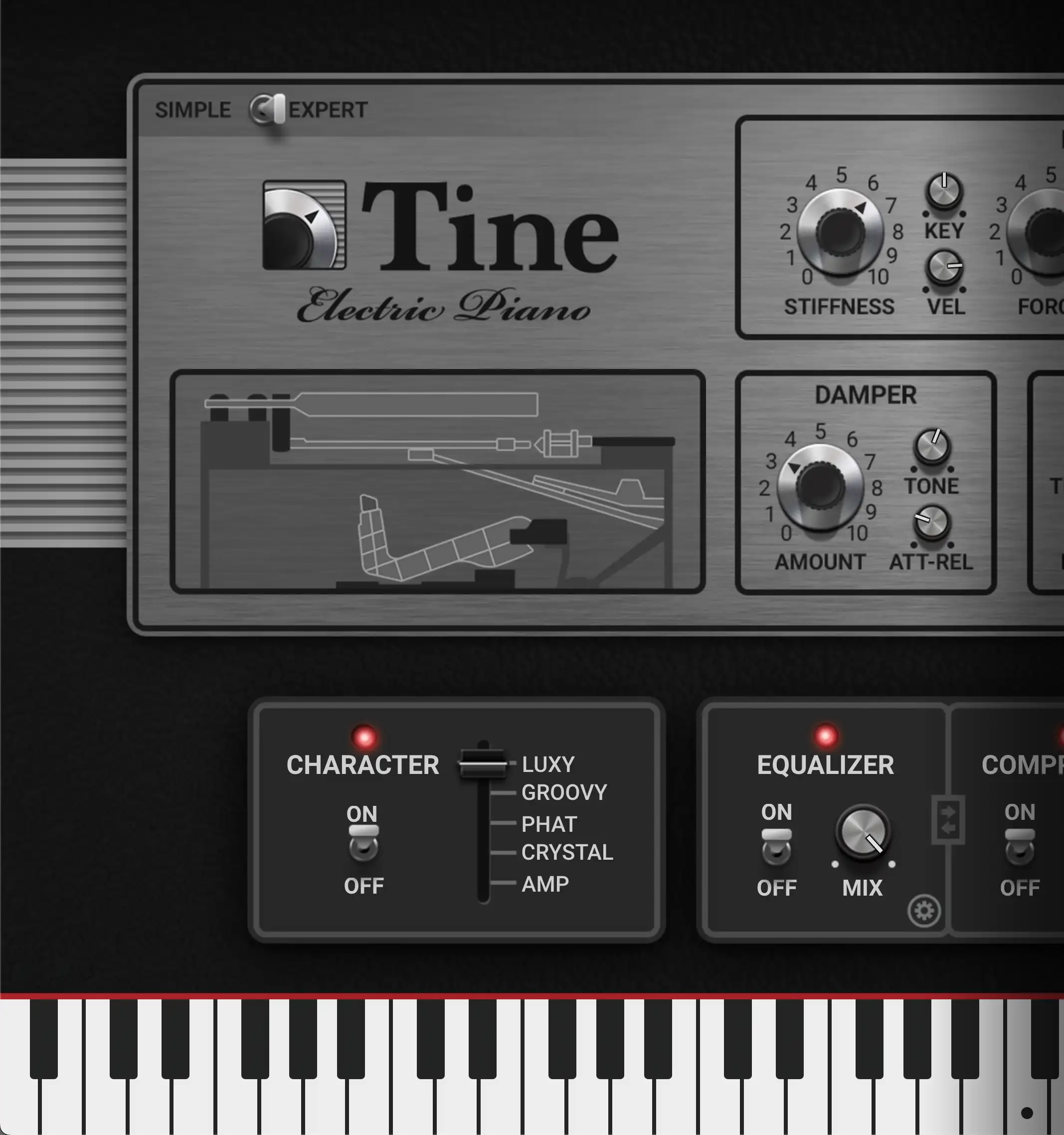
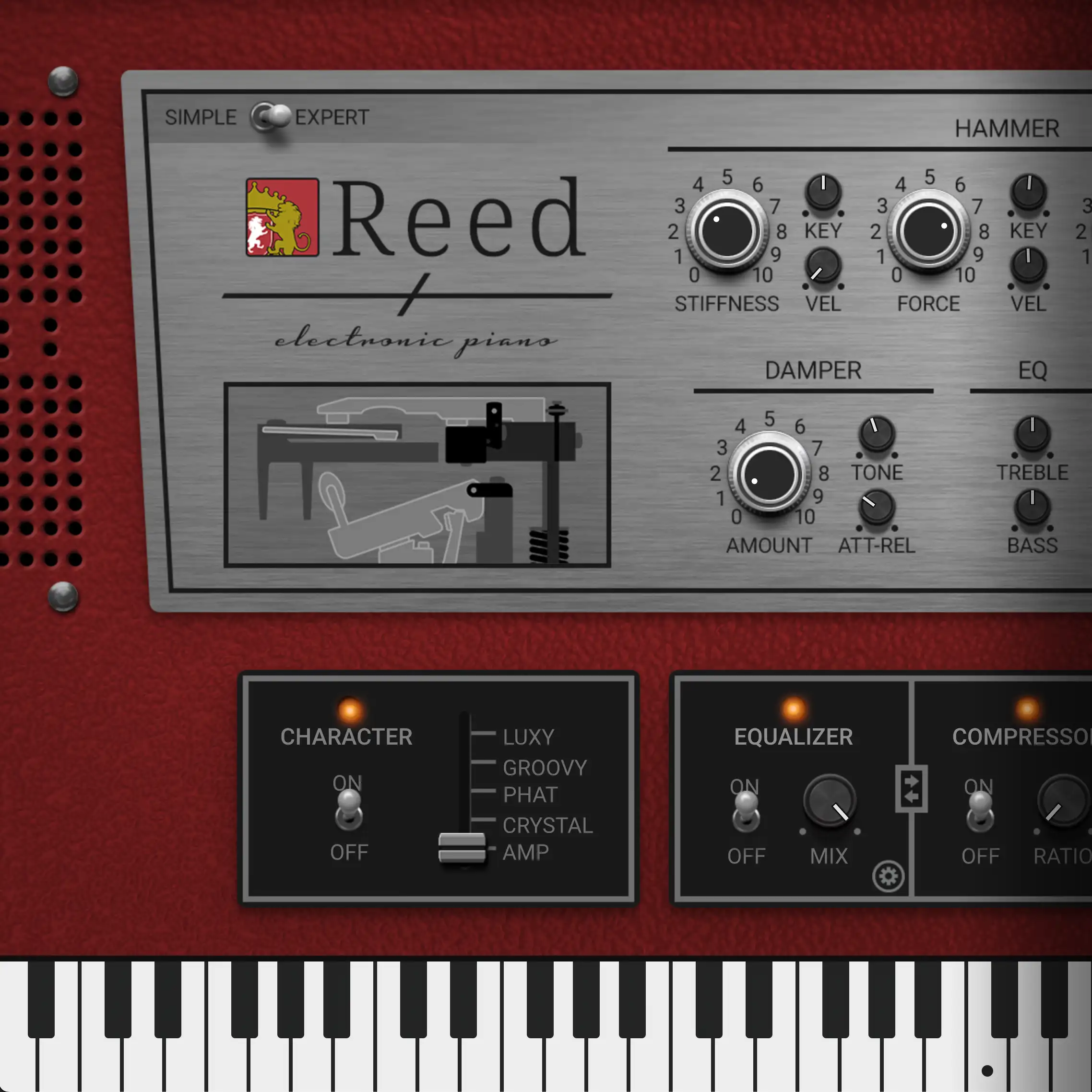
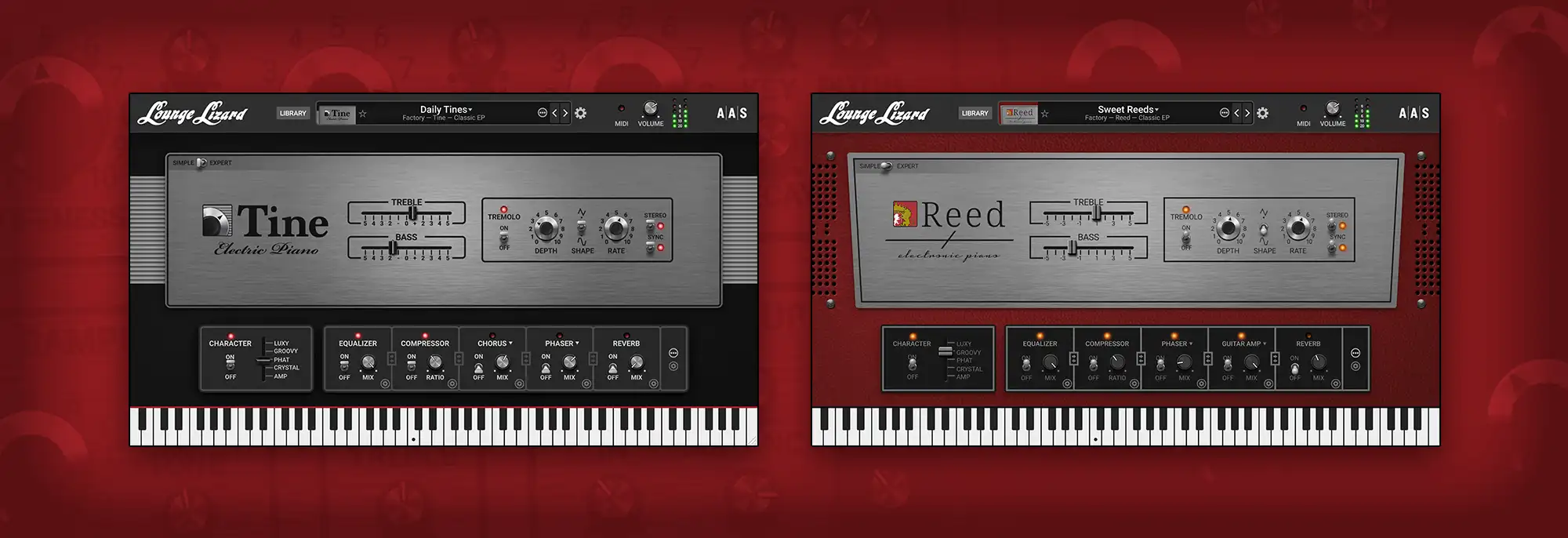
Our fully redesigned physical modeling core now features dedicated models for tine-based and reed-based pianos offers unmatched realism, warmth, and expressiveness.
See what's under the hood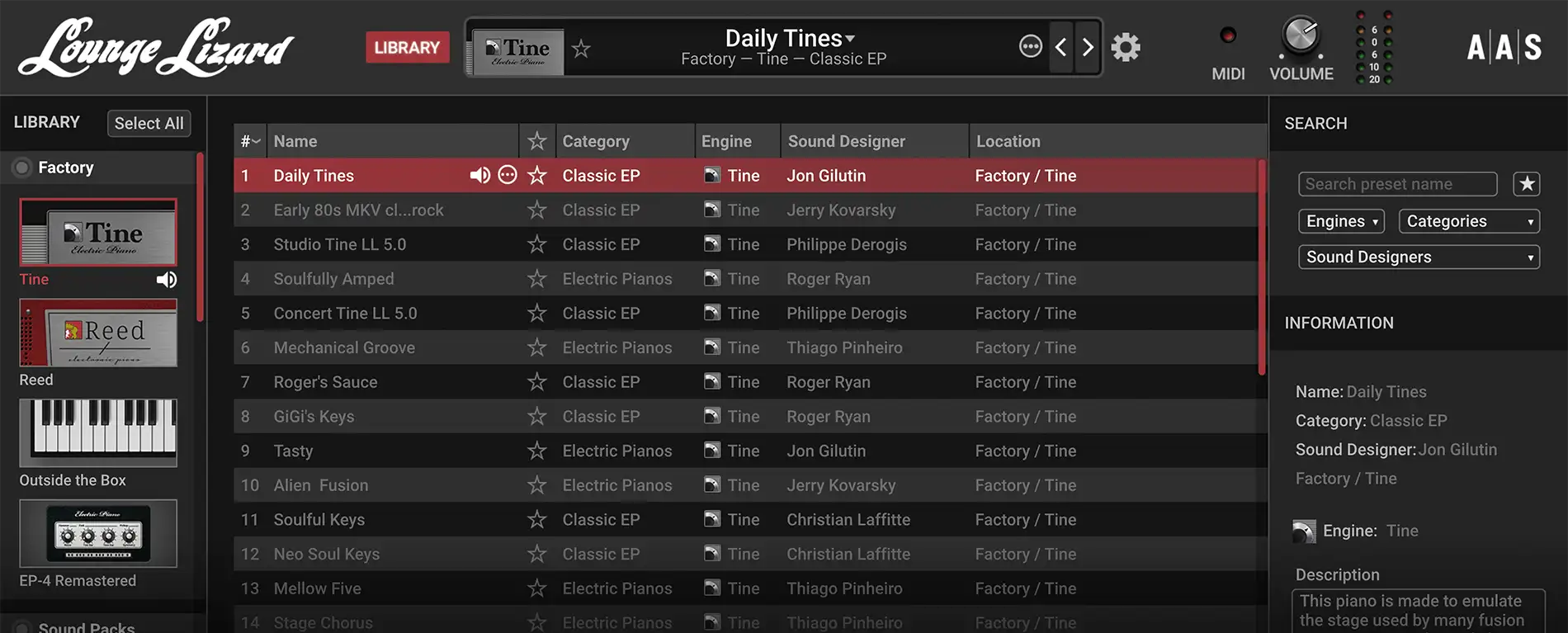
With an improved browser and an all-new search engine, navigating your Lounge Lizard library has never been quicker or more intuitive.
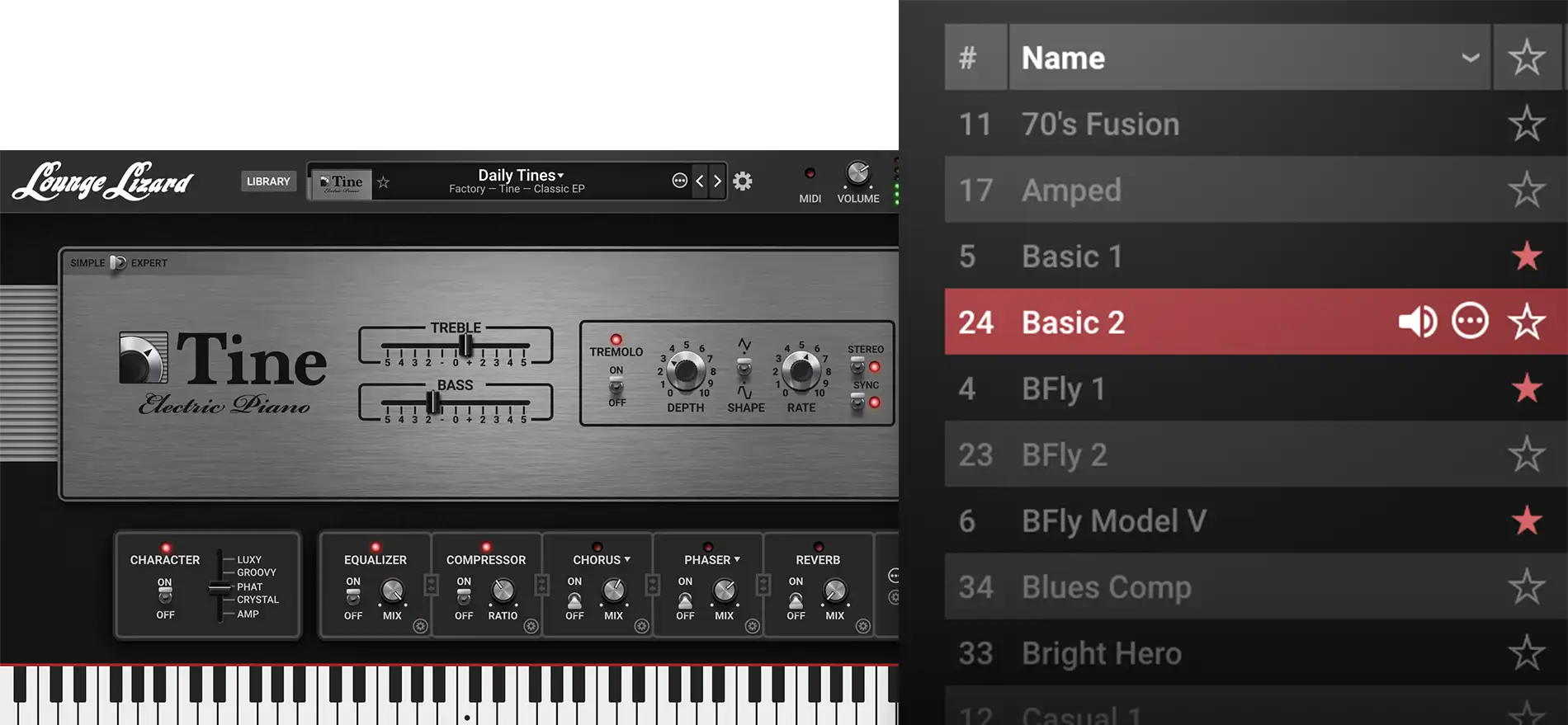
The completely new Lounge Lizard EP‑5 factory library introduces over 150 new piano sounds, offering deeper expression, richer tone, and unparalleled authenticity.
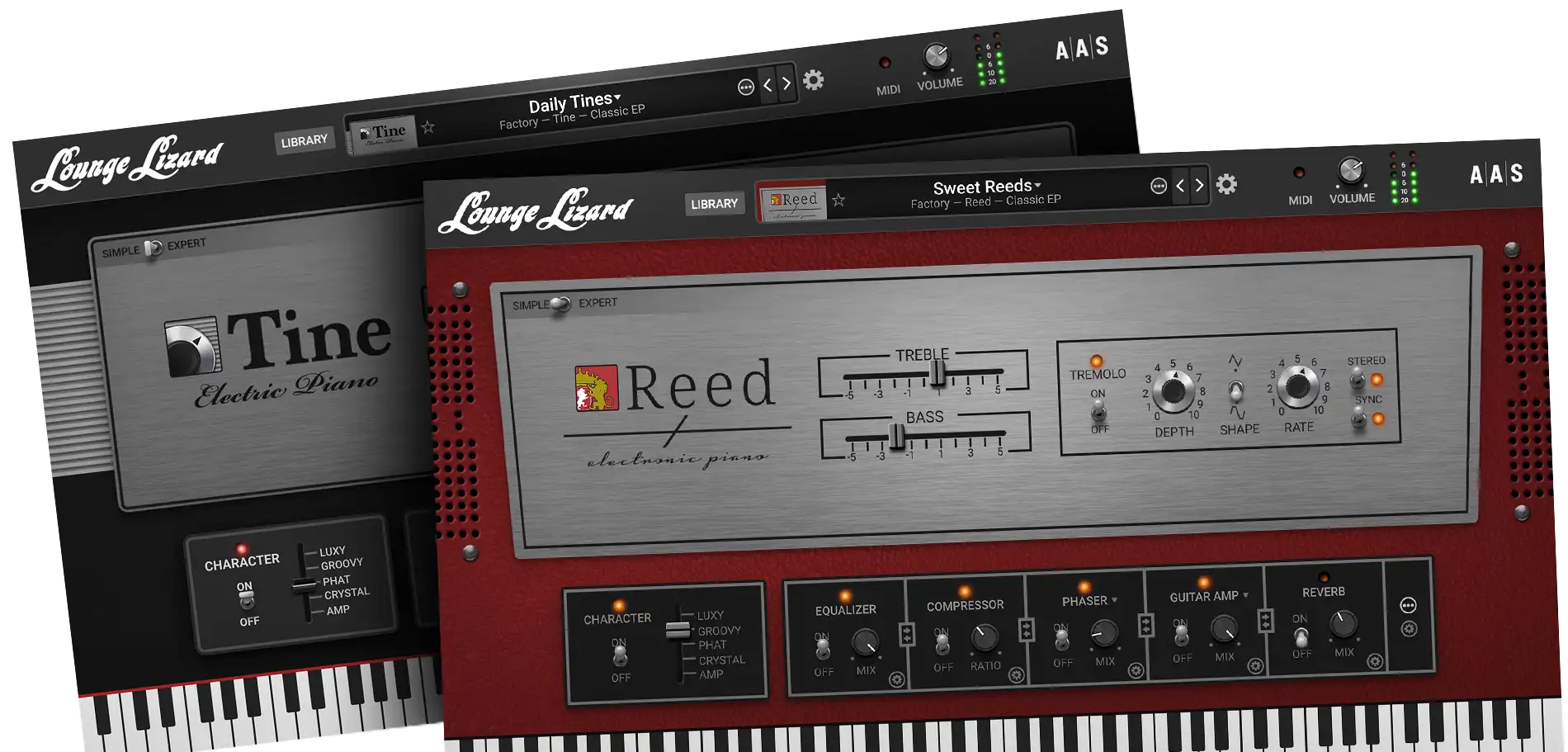
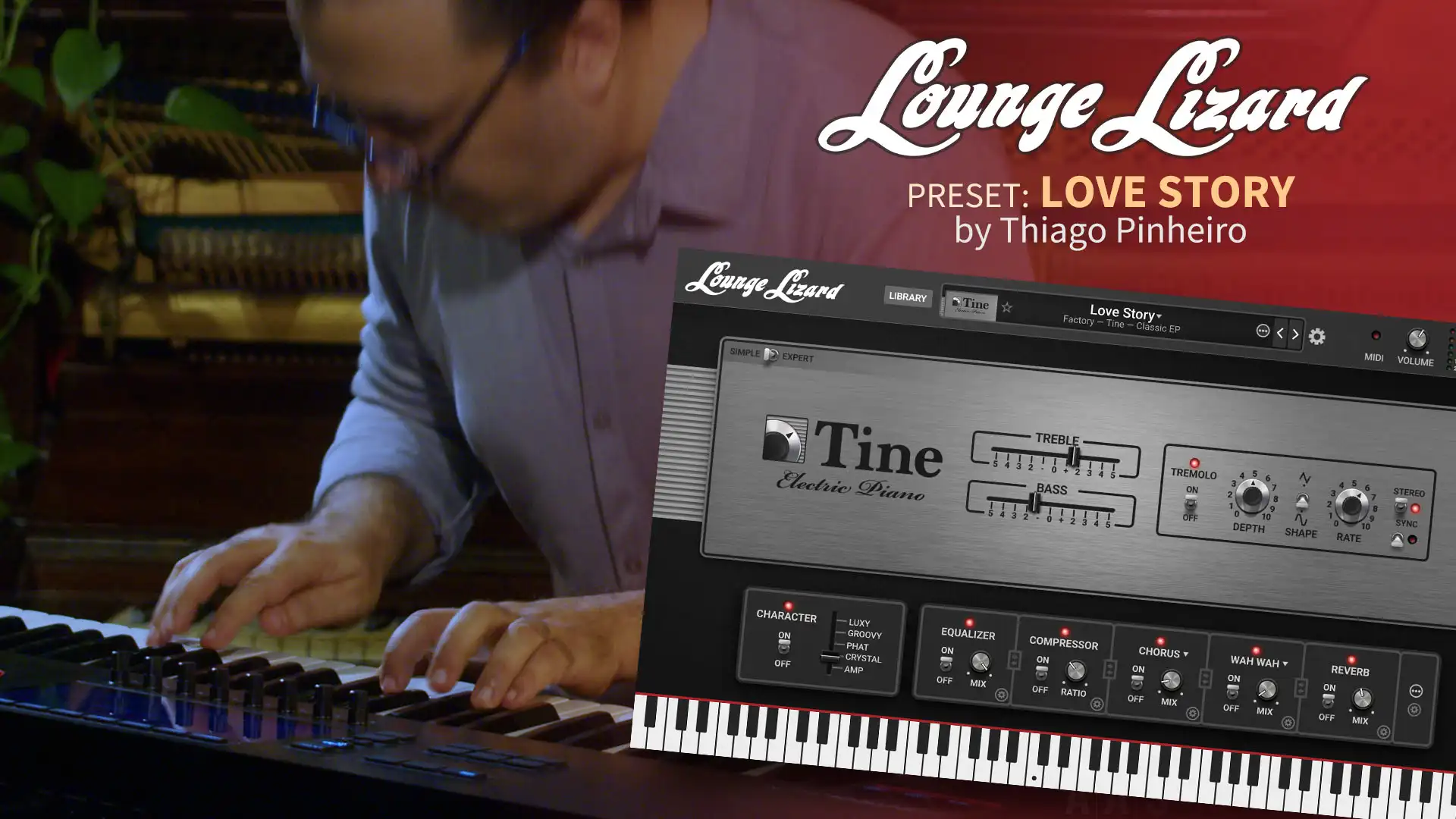
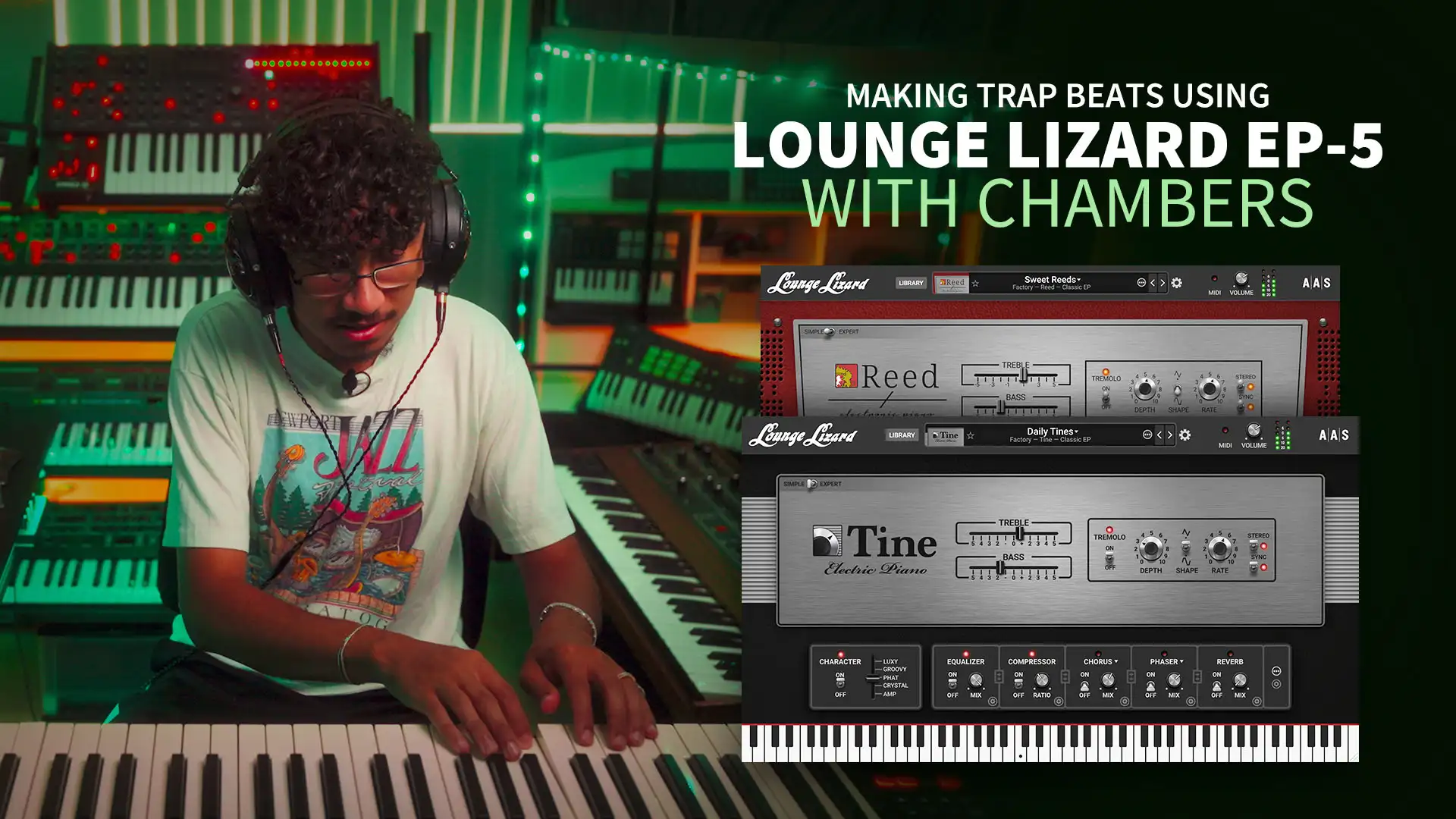
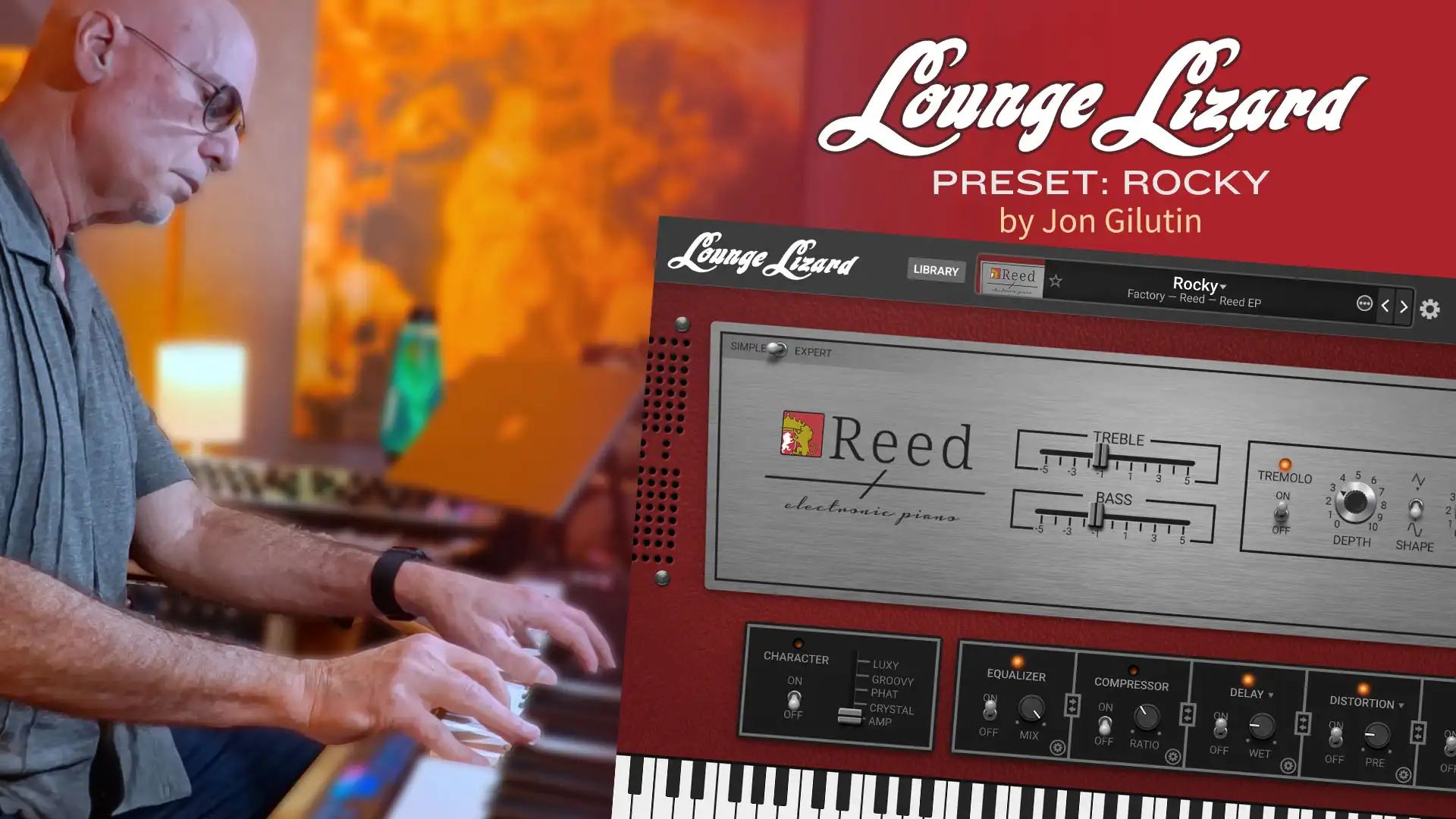
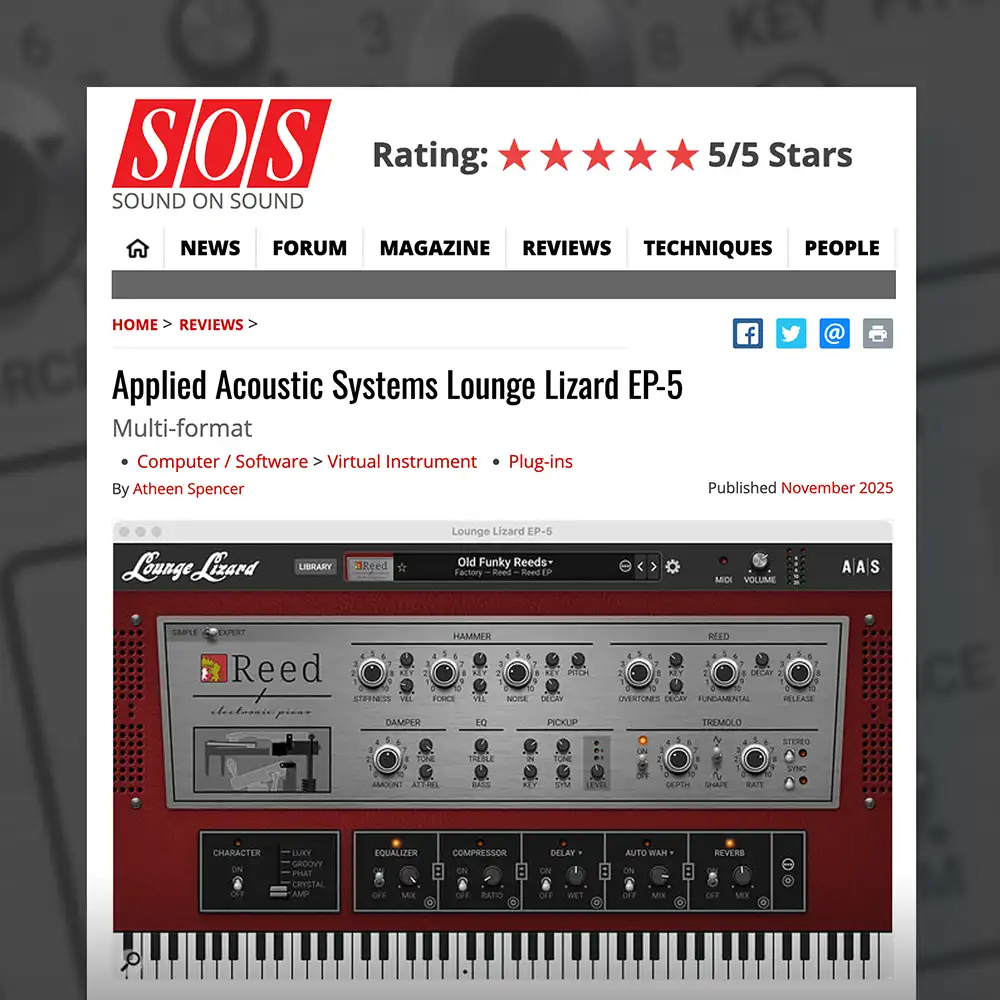
The redesigned dual-piano interface offers a simple view for a clean, straightforward experience and an advanced view for fine-tuning, delivering a more realistic, immersive feel.
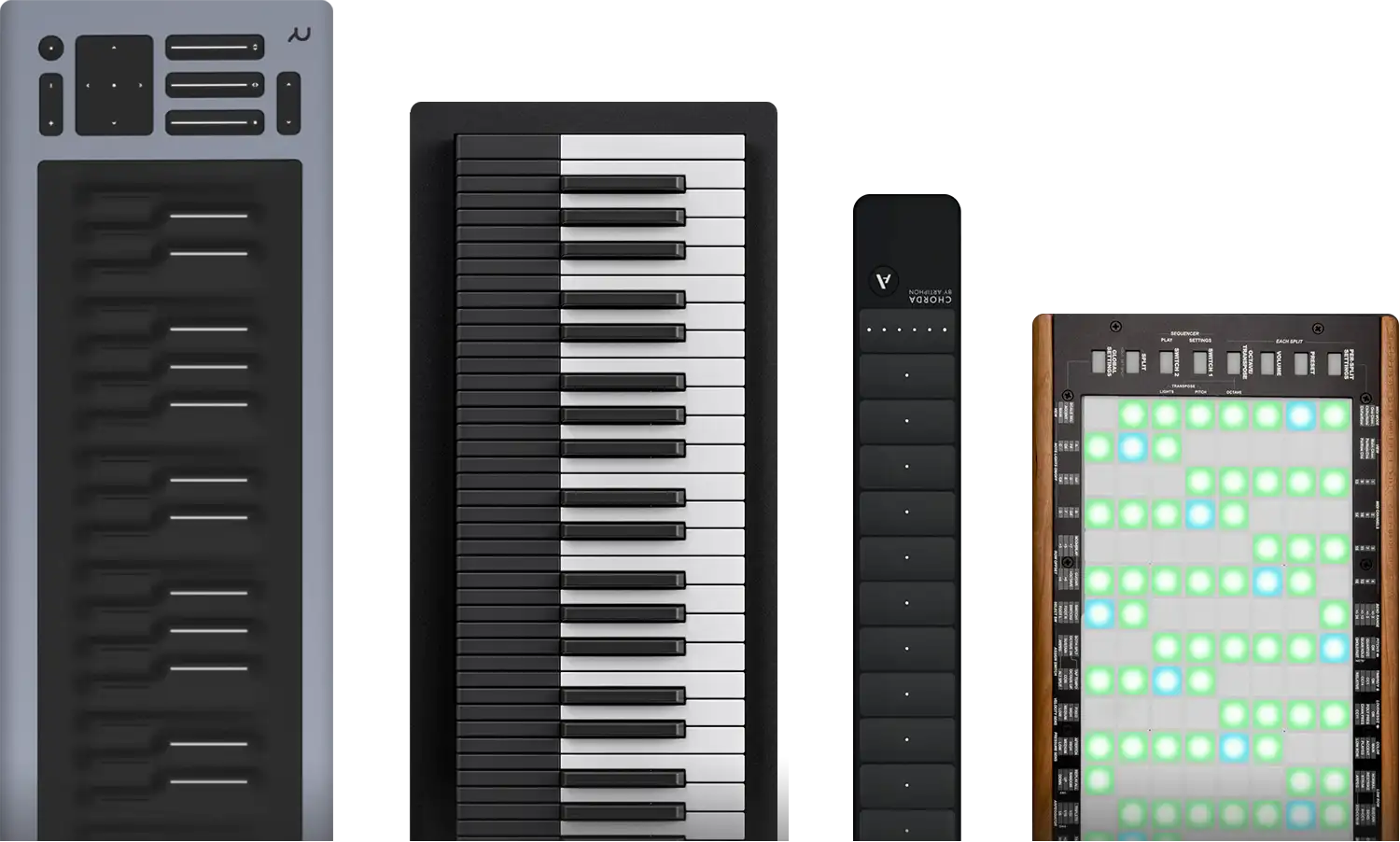
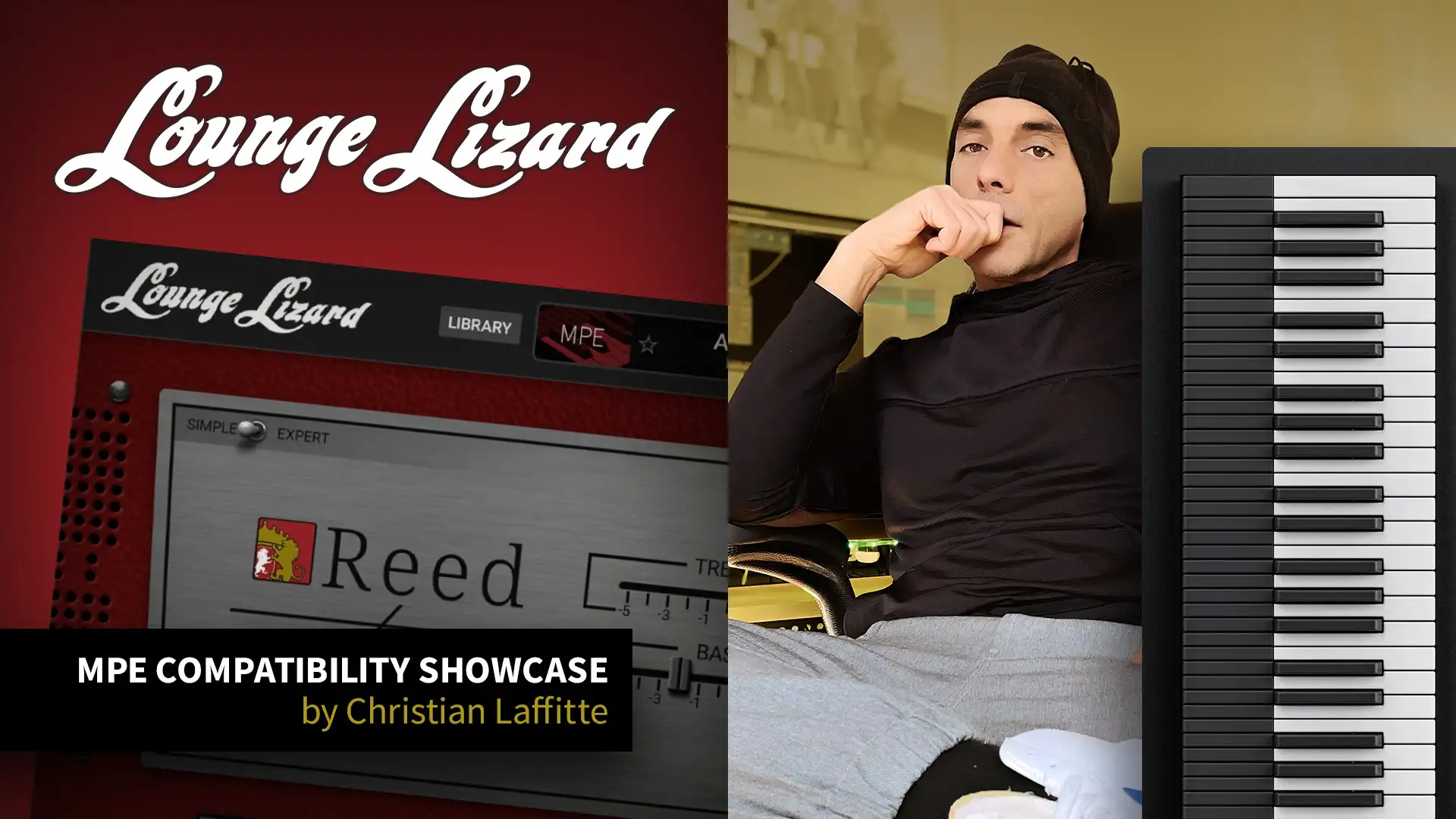
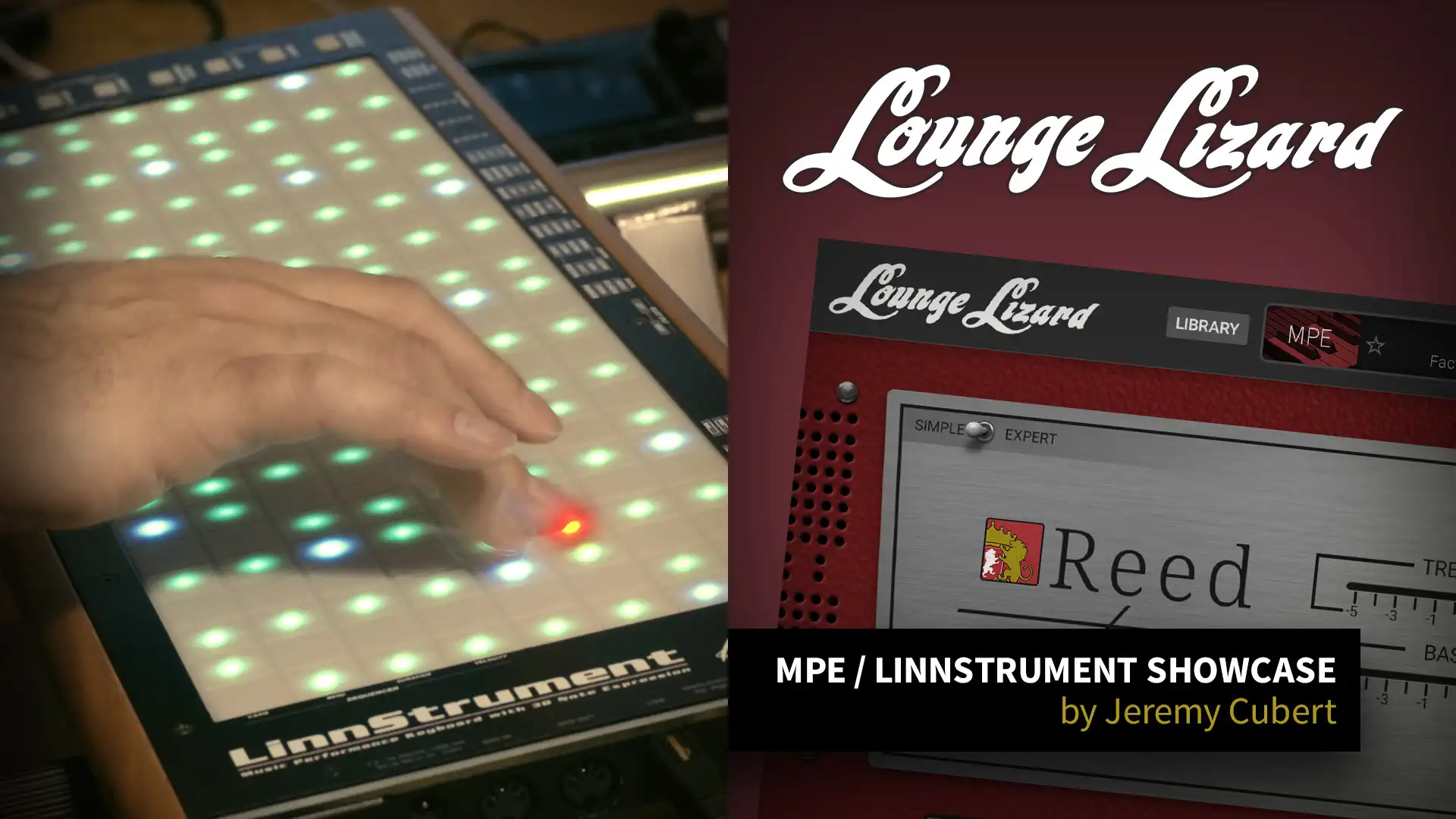
MPE introduces a new level of expressiveness and versatility, bringing a modern edge to the classic electric piano and letting your performances breathe with even greater nuance. Explore factory-designed presets for MPE controllers including the Roli Seaboard and Expressive E Osmose.
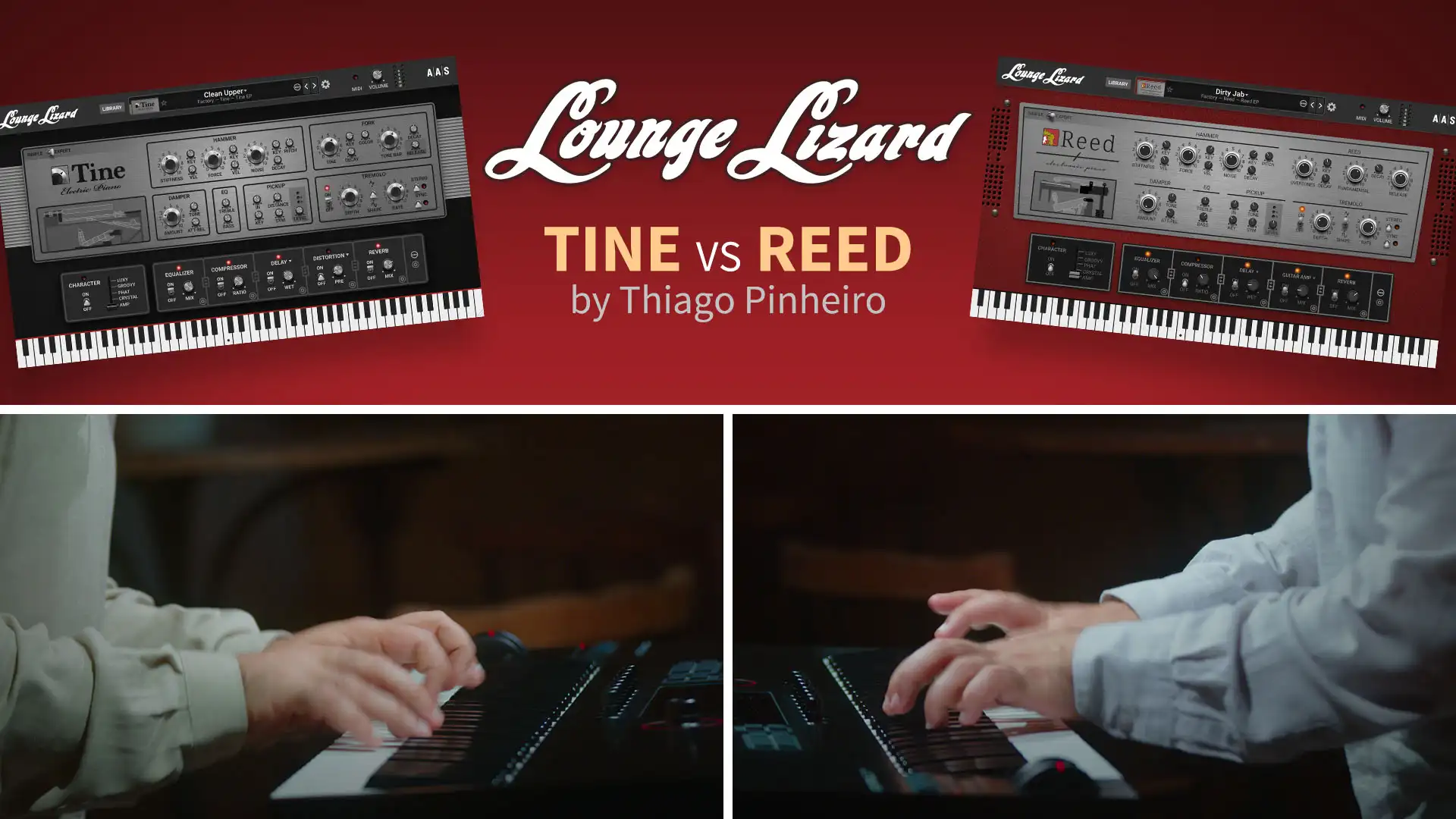
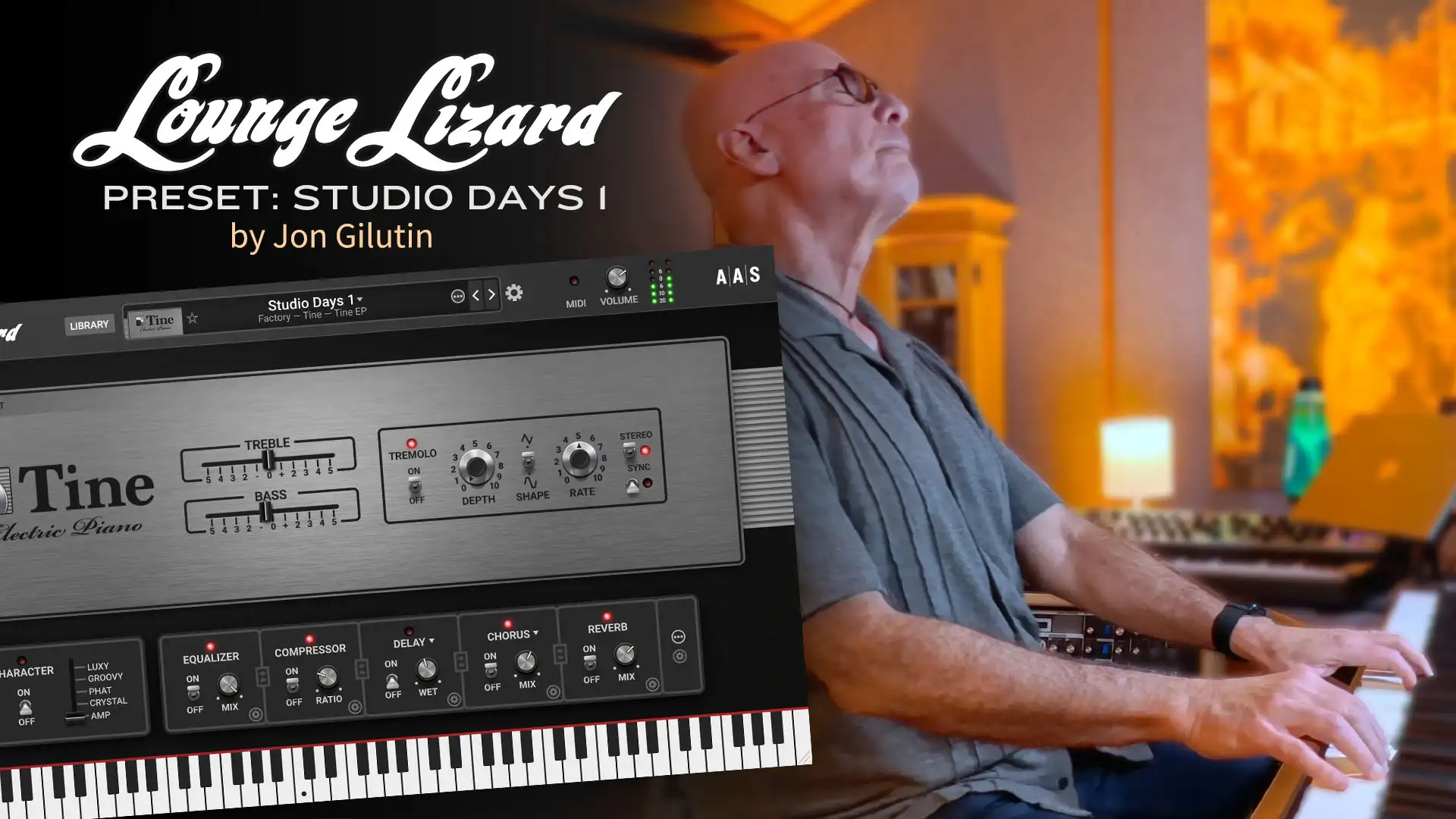
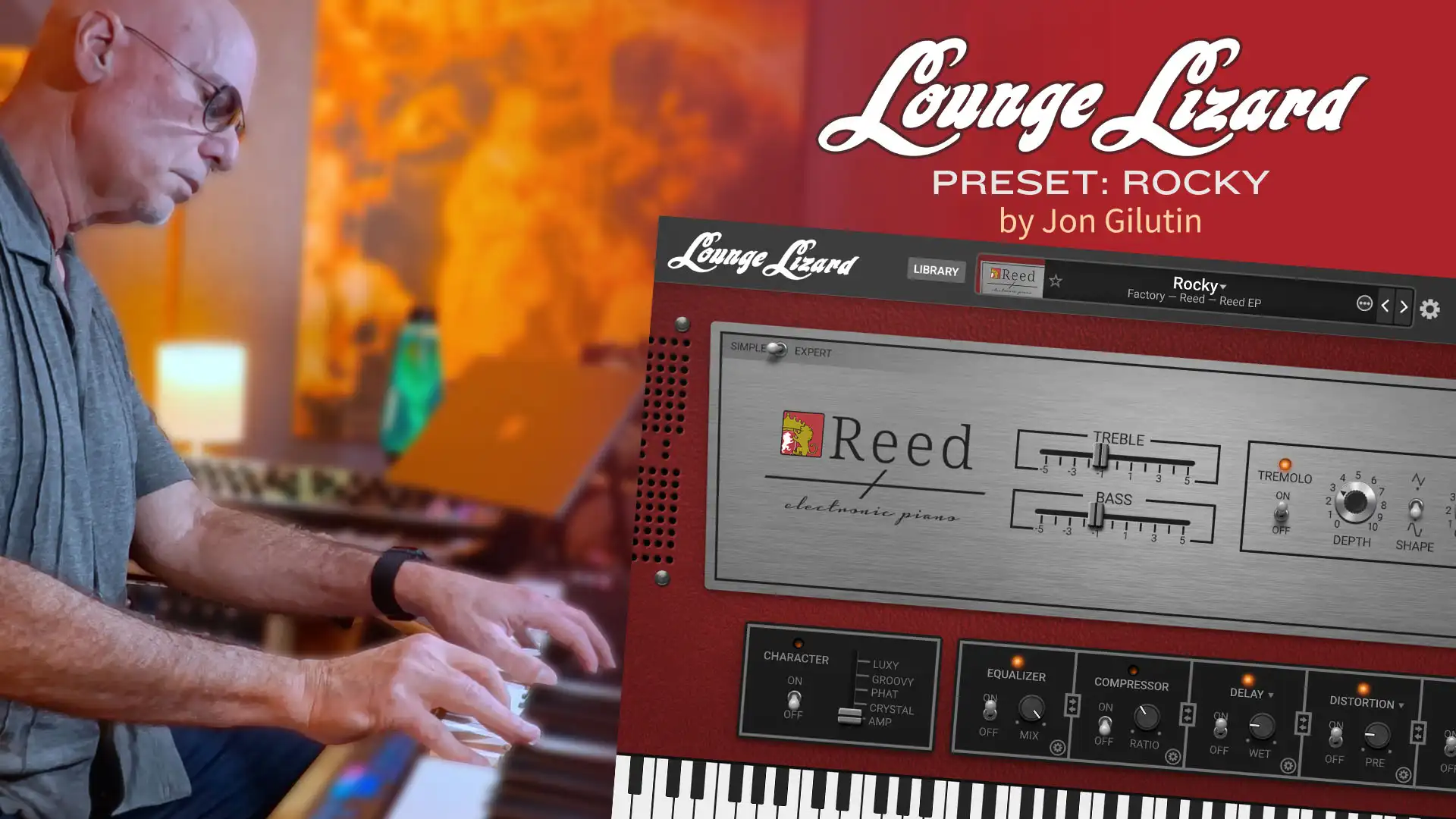
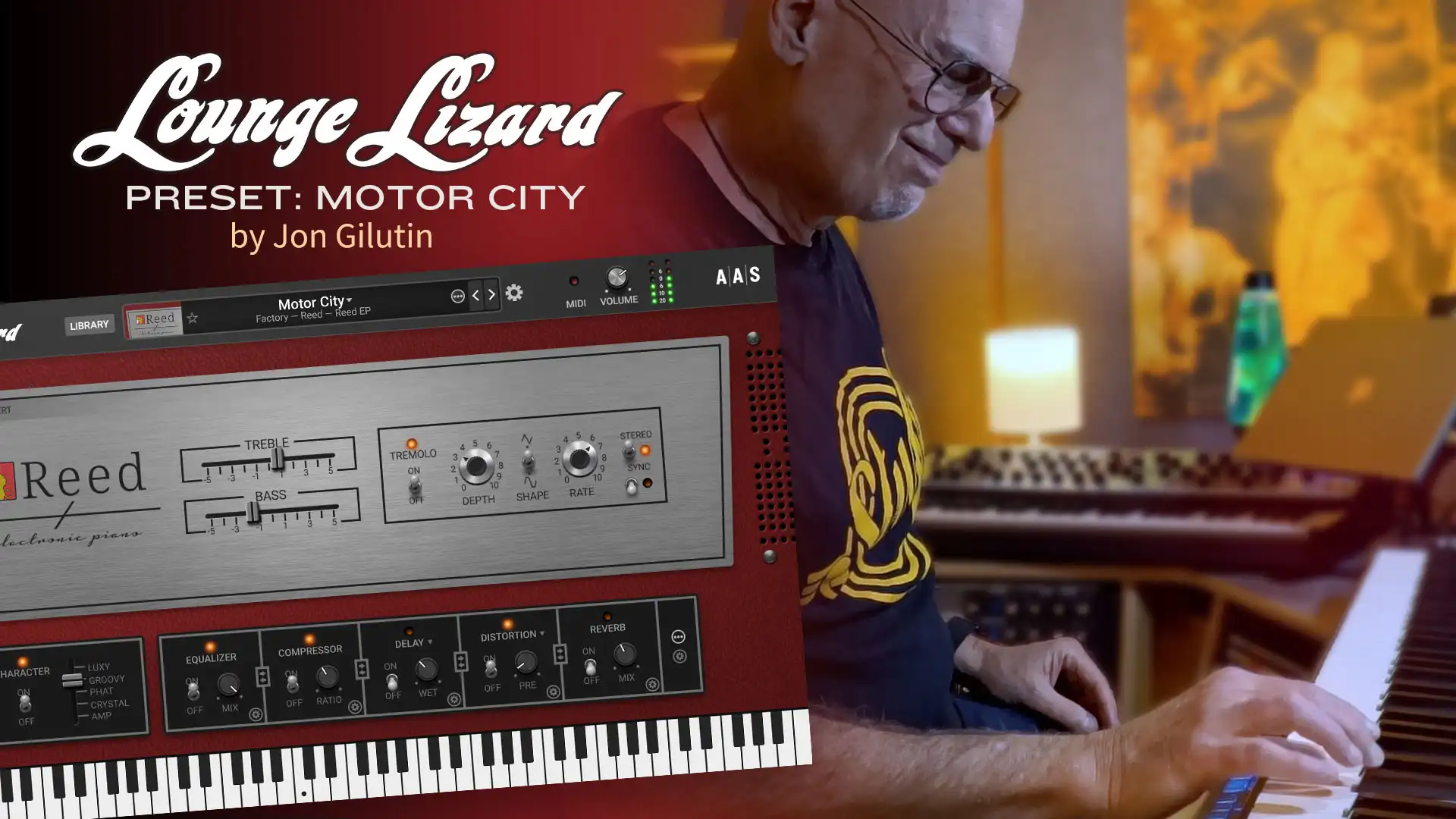
Lounge Lizard EP‑5 really captures the personality and vibe of vintage reed and tine pianos
Its interface is both simple and flexible, delivering classic tones as well as modern variations with ease. For producers, songwriters, and performers, it's a worthy upgrade that will keep this instrument a firm favourite.
Fully functional for 15 days. Less than 80 MB to download. Seconds to install.
Hear more audio demos
The feeling of playing a true classic—whether live or in the studio.
Direct access to key effect and performance parameters lets you perfectly match the tone to your playing style. Shape your sound with classic cabinet, preamp, microphone, and signal chain combinations typically used with electric pianos.
There’s something truly immersive about the connection that forms between a player and their instrument—that’s where the magic begins. Lounge Lizard makes it happen with perfectly smooth velocity response and a deeply expressive feel that reacts to every nuance of your performance.
Hammer, tone, tine, pickup—Lounge Lizard is built on meticulously modeled piano components. Custom pianos can be created with just a few tweaks—a process that once took hours of painstaking work on real instruments.
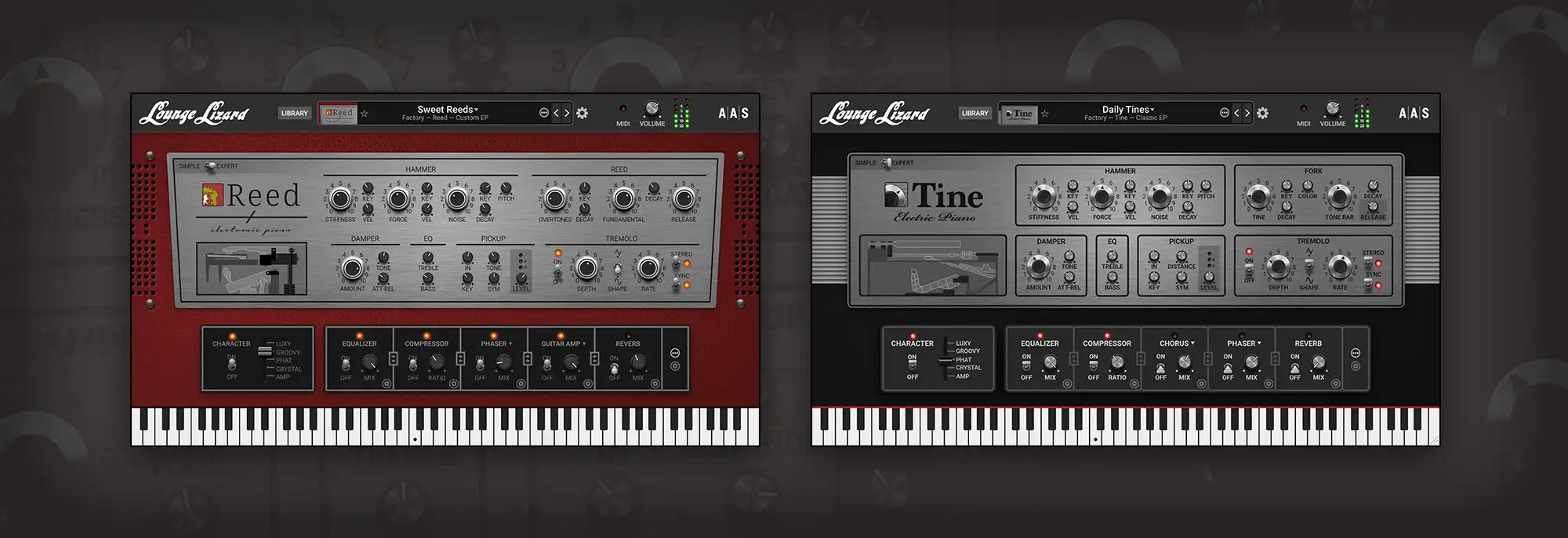
Famous players all had their own signature sound—achieved through painstaking manual adjustments to forks, hammers, and pickups. Whether you're chasing a classic tone or carving out your own, Lounge Lizard gives you direct access to every component of the piano.
Sound is produced when the hammer strikes the tine or the reed. Shape the tone and natural decay of these vibrating elements at the core of the electric piano sound.
Control how dampers are applied or lifted from the fork, shaping the attack and release of a note to be either clean or noisy.
Control the attack with the hammer by adjusting the impact force, hammer stiffness, and the noise it produces. Modulate these parameters across the entire keyboard range or based on MIDI velocity.
Just like in an electric guitar, the pickup captures the vibrations of the fork or reed. Adjust its position to shape the tone and control distortion—dial in a warm, smooth sound or push it into a growling, barking edge.
Fine-tune the tremolo to your liking. Choose a triangle wave for a smooth, flowing effect or a soft square wave for that classic chopped effect.
You’ll love the pure sound of Lounge Lizard EP‑5—but the built-in effects open up a world of sonic possibilities you’ll be glad to have at your fingertips. And you’ve got plenty to choose from: compressor, equalizer, delay, distortion, phaser, chorus, flanger, wah-wah and notch filters, and reverb.
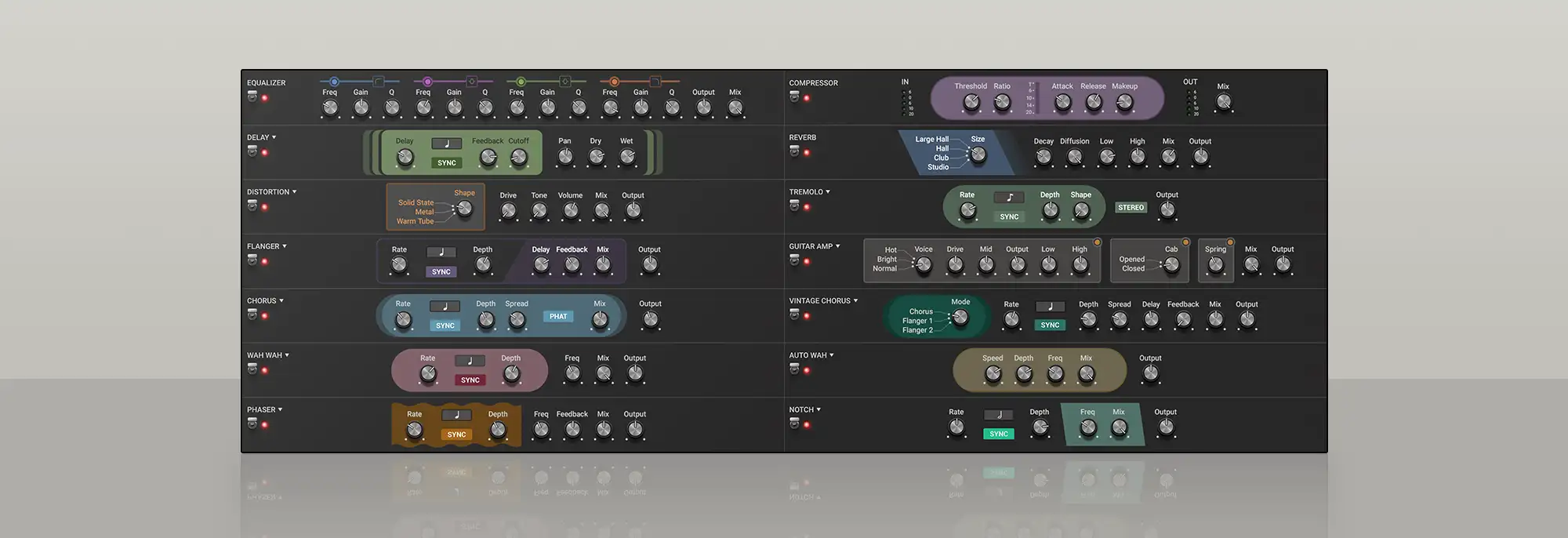
The electric piano has played a defining role in the history of rock and jazz. The factory library features a wide range of presets built around classic effect combinations and signal chains—perfectly capturing the iconic sounds of timeless tracks.
With unconventional effect chains or extreme sound design tweaks, Lounge Lizard can transform into something truly wild. It keeps the playability of a classic keyboard instrument—but delivers tones far beyond anything you've heard from a traditional electric piano.
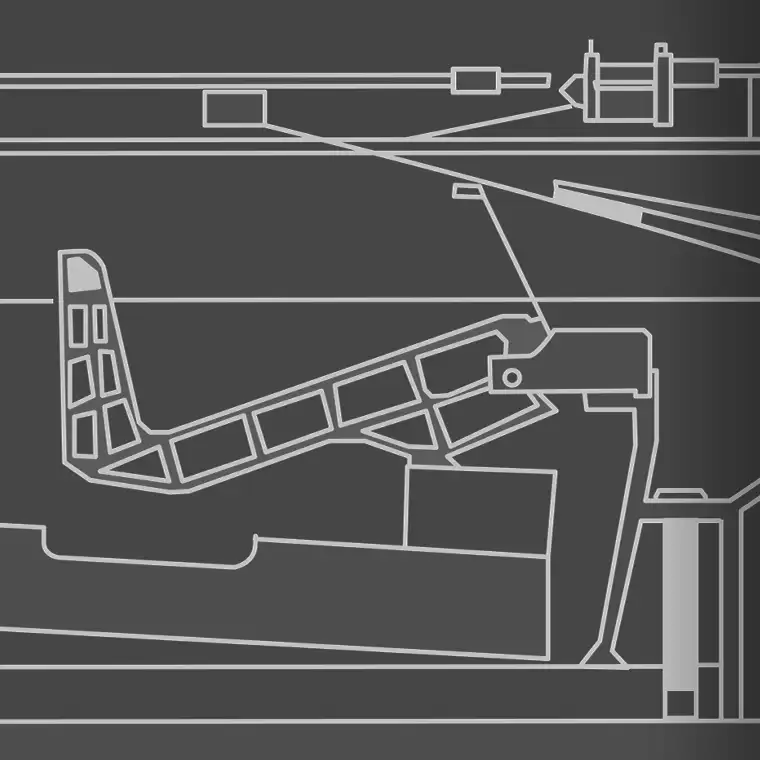
Lounge Lizard’s synthesis engine is built on a detailed model of the key components found in real electric pianos—hammer, fork or reed, damper, and pickup. Each element is precisely recreated to capture the authentic tone, dynamics, and playing feel of the originals.
Read moreElectric piano players often fall into one of two camps: tine-based or reed-based. Regardless of preference, both instruments have been immortalized in countless songs by legendary musicians. With its vast library of classic and custom tones, its authentic playing feel, Lounge Lizard delivers a truly inspiring electric piano experience.
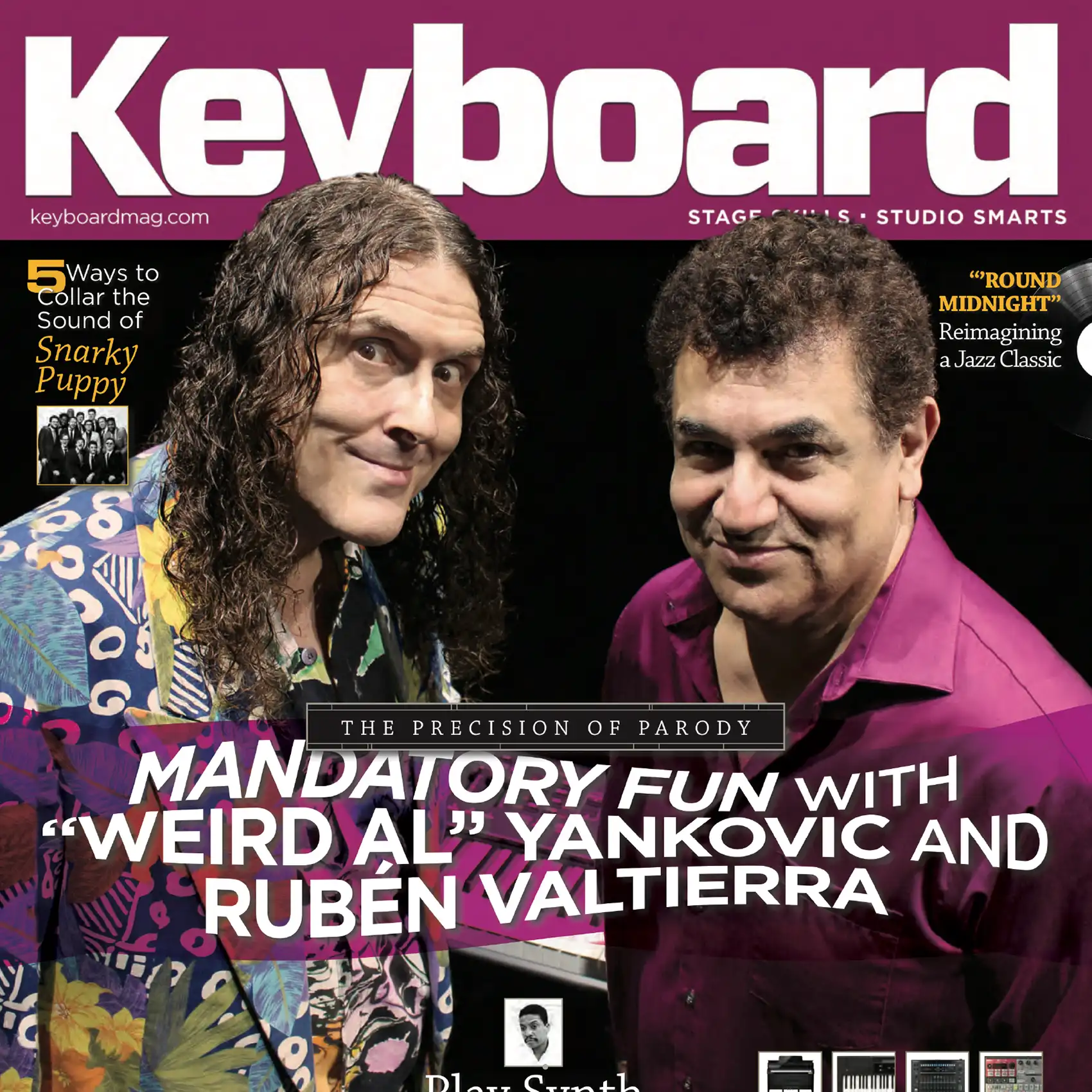
We love you guys! Thank you again and again!
The legend and his keyboard director are touring the world with the help of Applied Acoustics Systems and Lounge Lizard, our favorite plug-in. We love you guys! Thank you again and again!
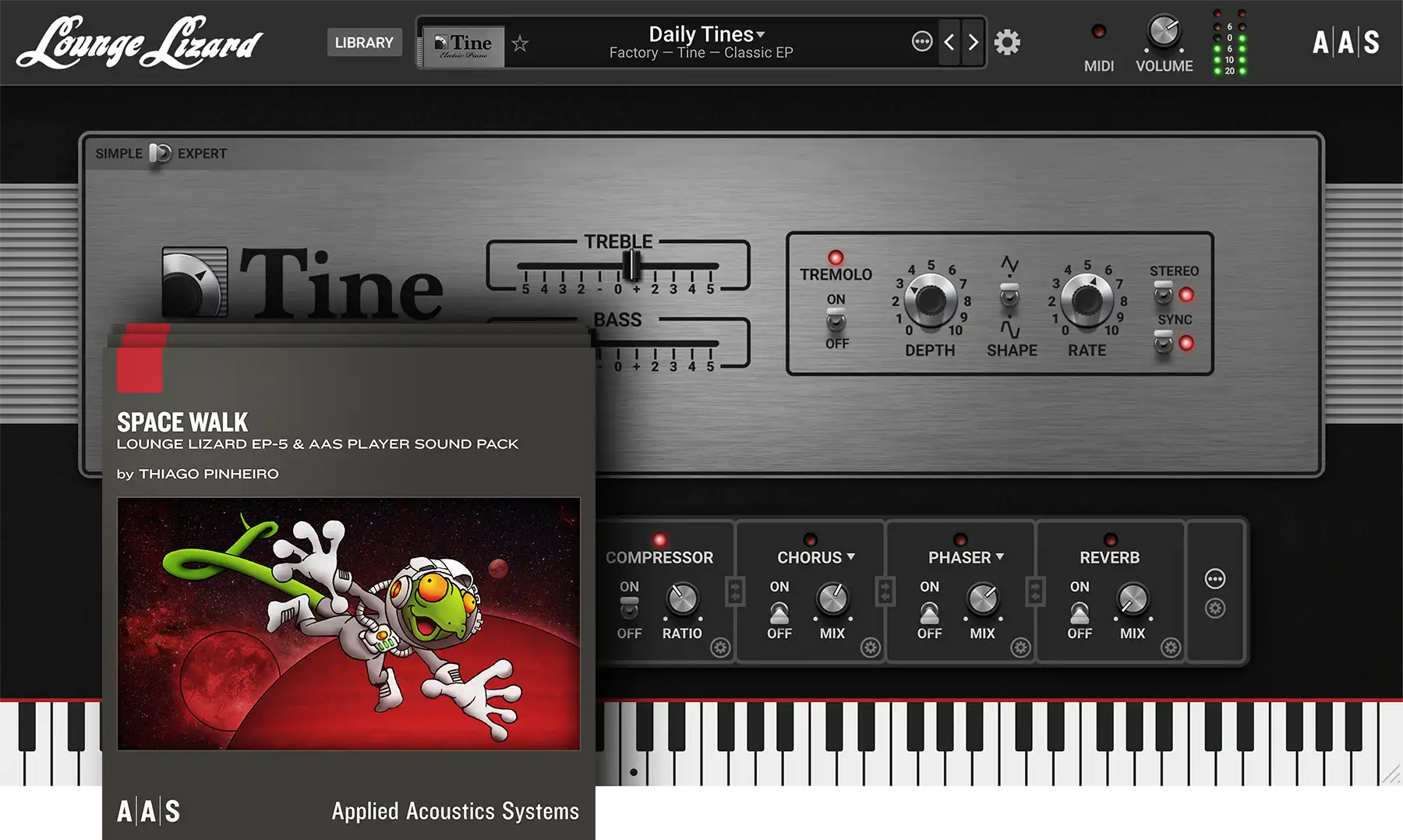
Synth and Sound Packs Bundle
Pick up these three Sound Pack Series titles separately or as part of the bundle. With 330+ presets on tap, this collection secures an endless source of inspiration.
Also, make sure to visit the custom offers page of your account to complete your collection.
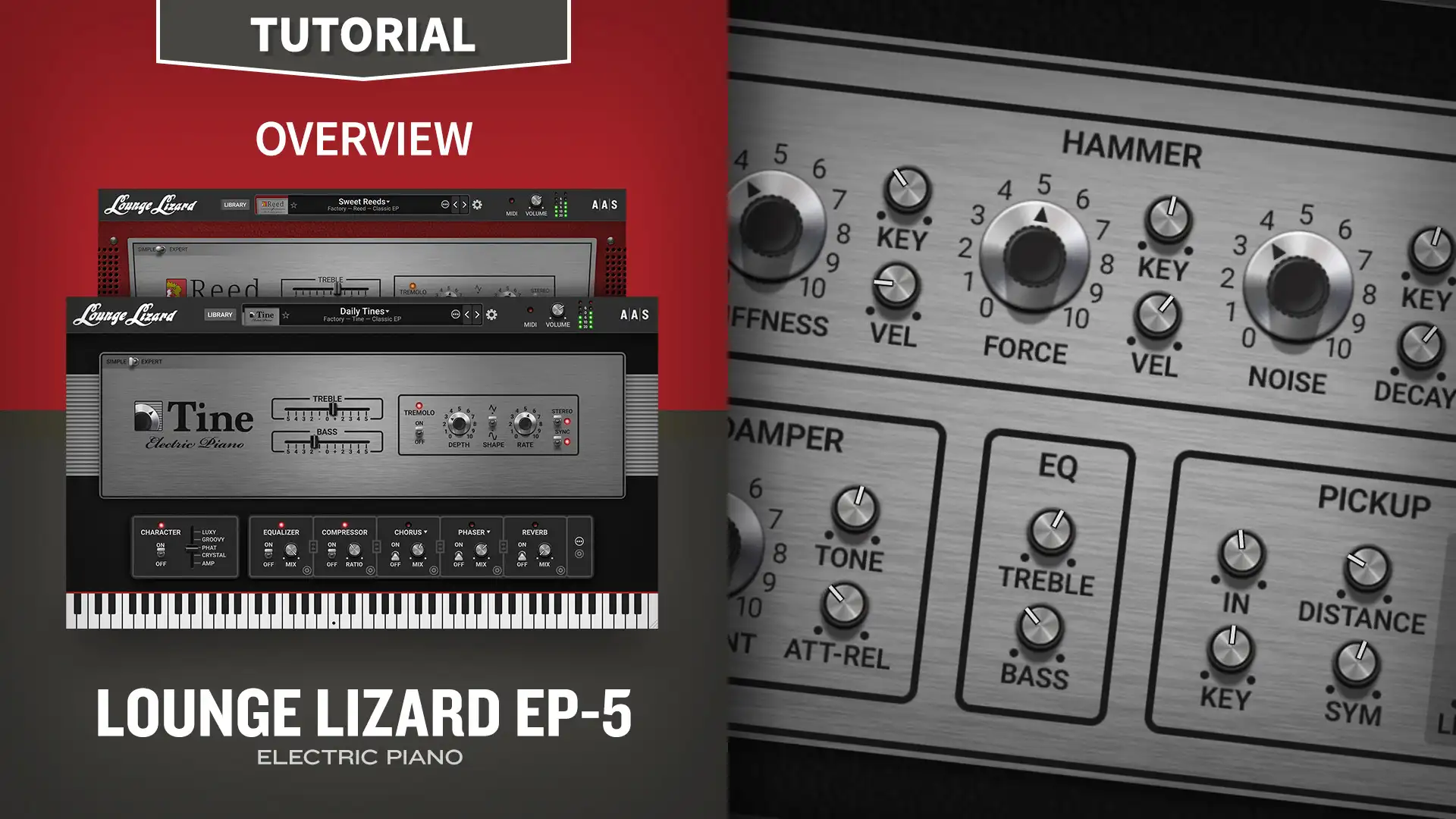
Learn more on how to use Lounge Lizard EP‑5. A complete video series of tutorials on Lounge Lizard EP‑5. Learn all about the ergonomics, the modules, and the sound of our electric piano.
Lounge Lizard EP‑5 is compatible with nearly all DAWs.

Ableton
Apple

Avid

Bitwig

Cockos

Image-Line
MOTU

Native Instruments

Native Instruments
Fender

Reason Studios

Steinberg

BandLab

Acoustica
*The minimum system requirements mentioned above are for standalone usage. For plug-in usage, please refer to your DAW software requirements (Cakewalk, Pro Tools, Cubase, Live, Digital Performer, Logic Pro, etc.).
You still have questions about purchasing, educational sales, or licensing?
Find everything in one place—manual, tutorials, technical FAQ, latest installers, and version history.

We offer a 30-day money-back guarantee on all orders carried out on our web store—no question asked.

Our custom installers ensure fast installation and authorization so that music remains the priority.

We pride ourself in providing fast, accurate, and friendly customer assistance by our in-house experienced AAS staff.

We craft music software since 1998 and pledge to continue doing so for years to come, and that with the best user experience in mind.
Preparing your download…
This can take up to a minute.