Acoustic Filter & Delay
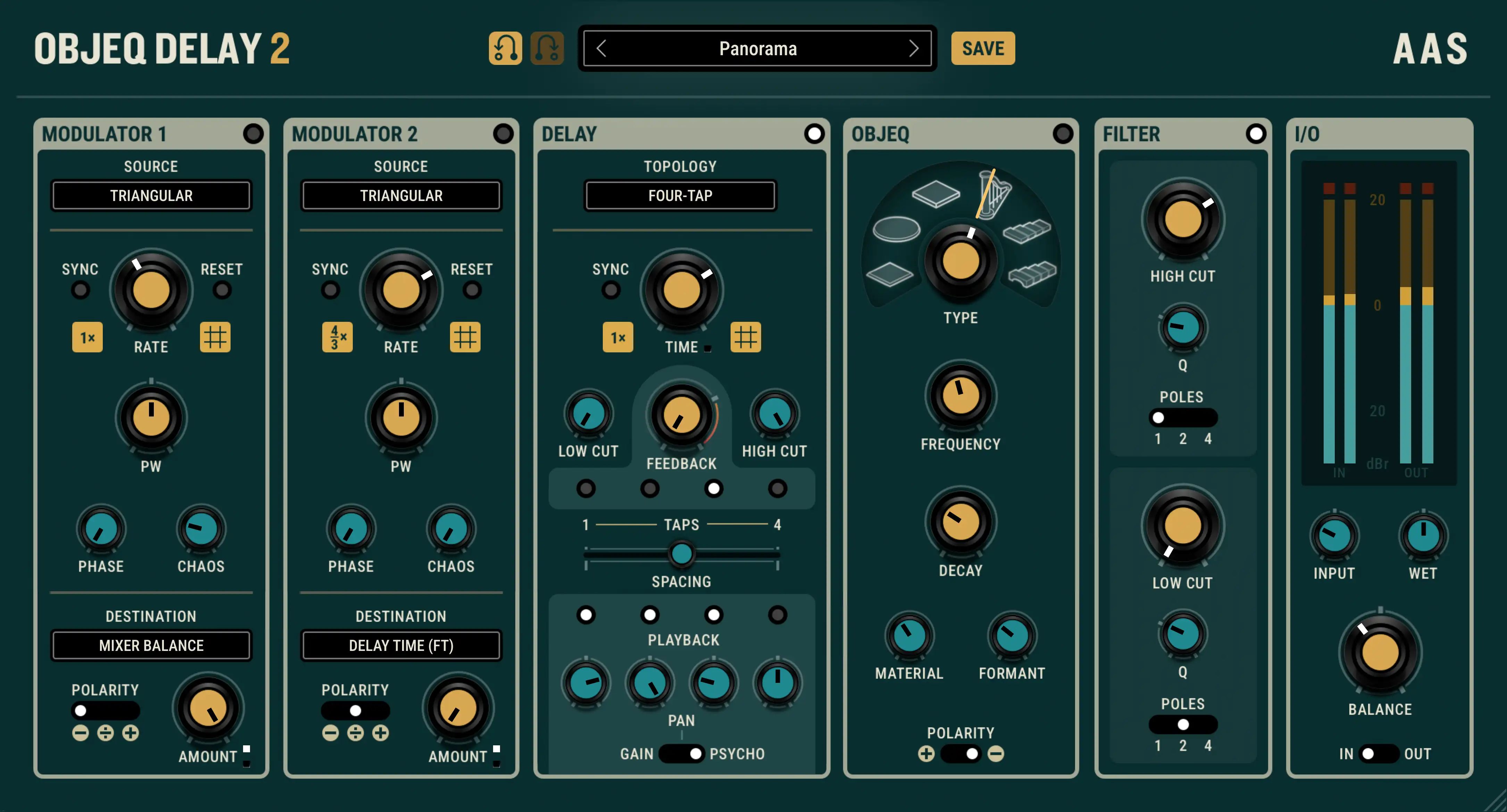
Next level delay. Powered by physical modeling.

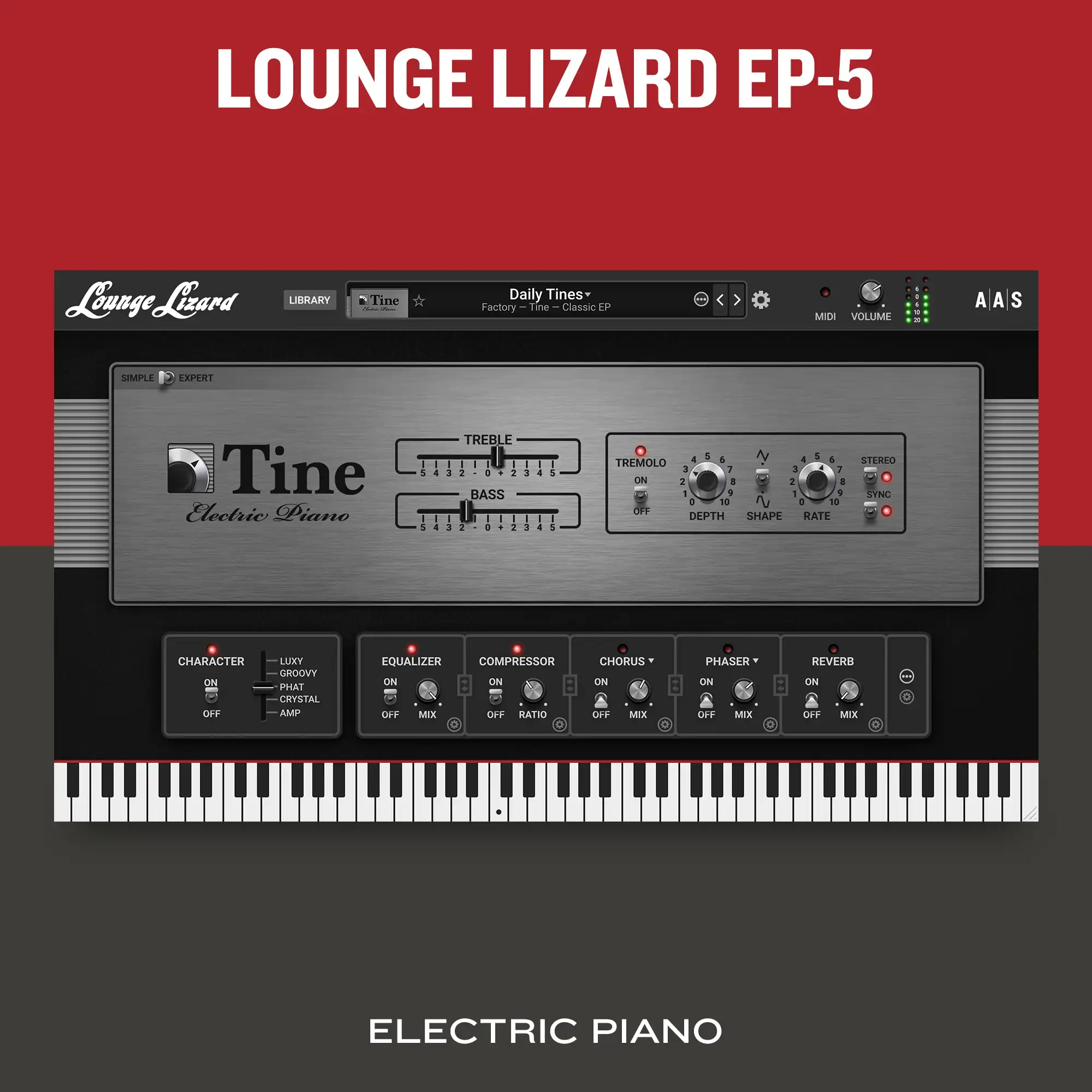
Electric Piano
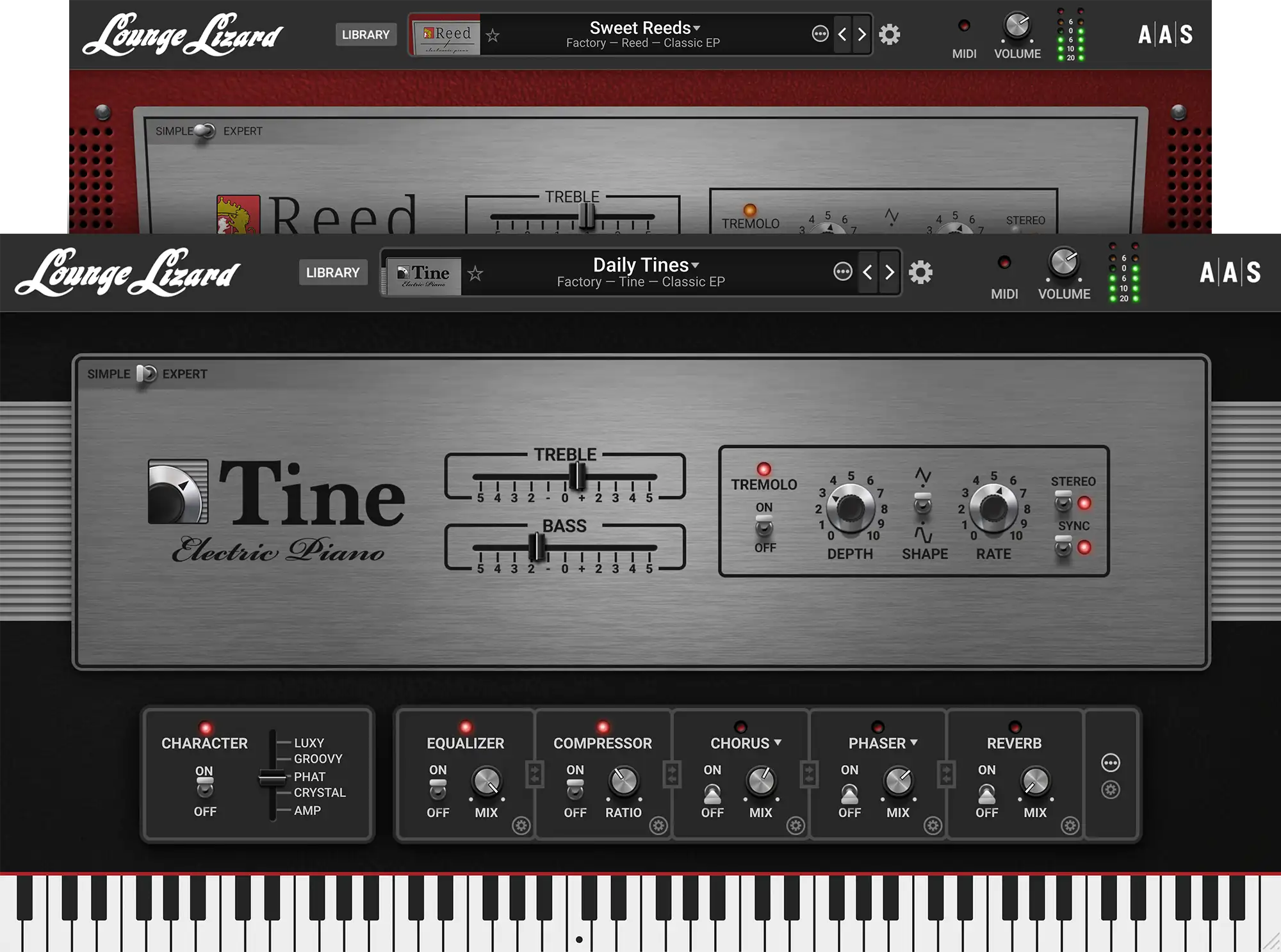
Pure vintage vibe, perfectly captured.
- 5/5 Stars on Sound On Sound -
by Thiago Pinheiro
Modern Americana guitar styles rooted in the Nashville sound.
by Christian Laffitte
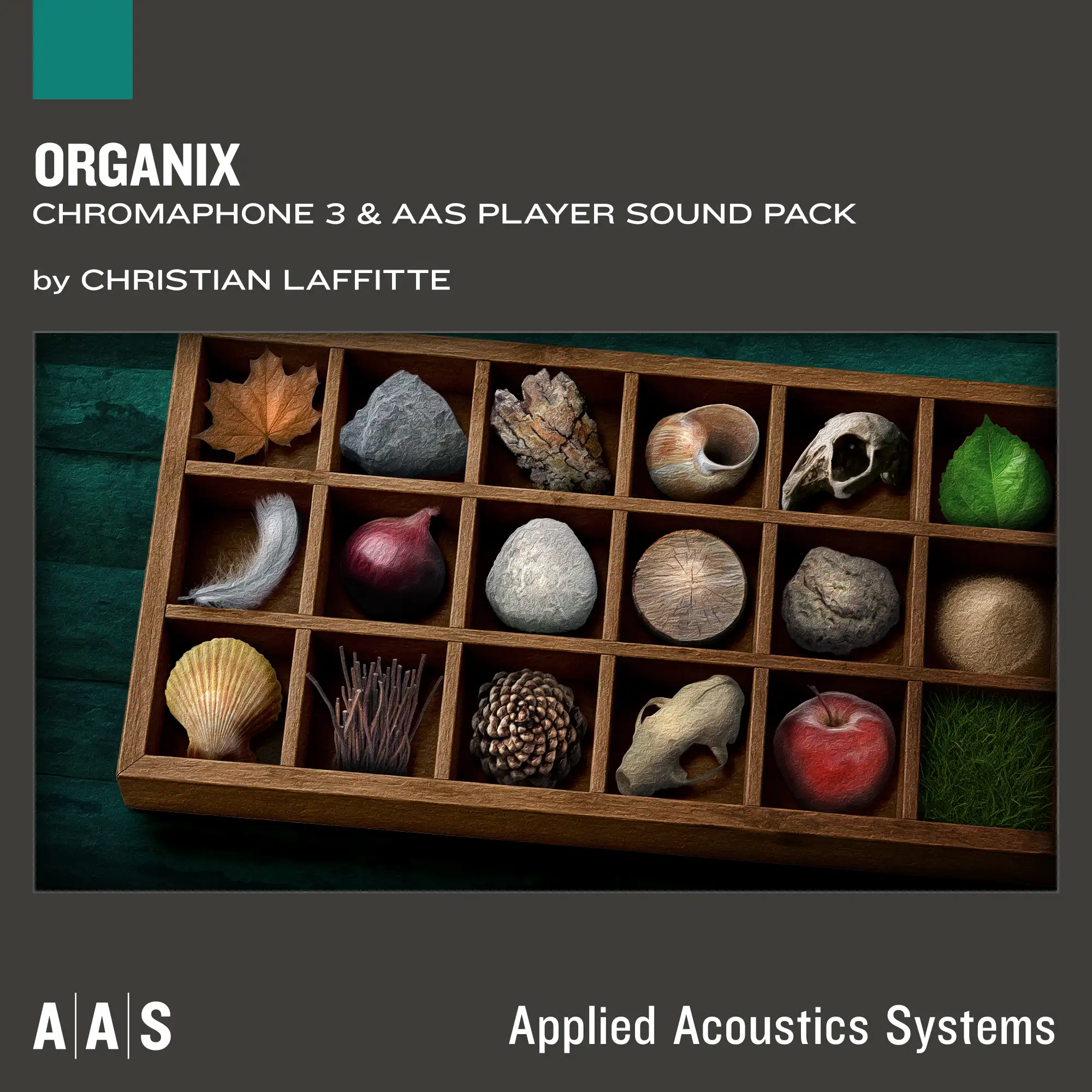
Rooted in wood, skin, and strings, it merges traditional instruments with contemporary production for a rich, organic sonic palette.
by Adam Pietruszko
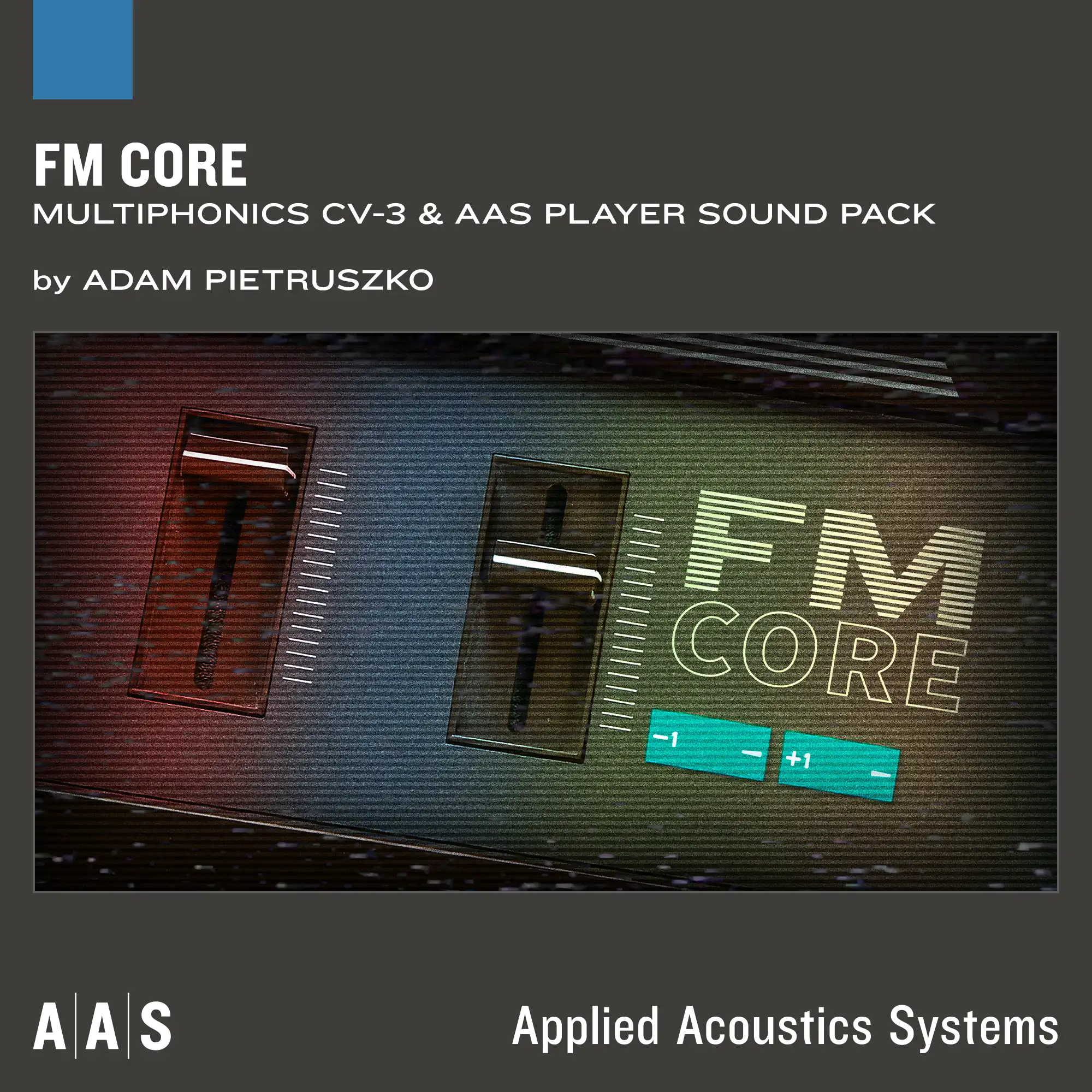
FM Core merges ’80s-inspired DX tones with advanced FM synthesis for timeless, versatile sound design.
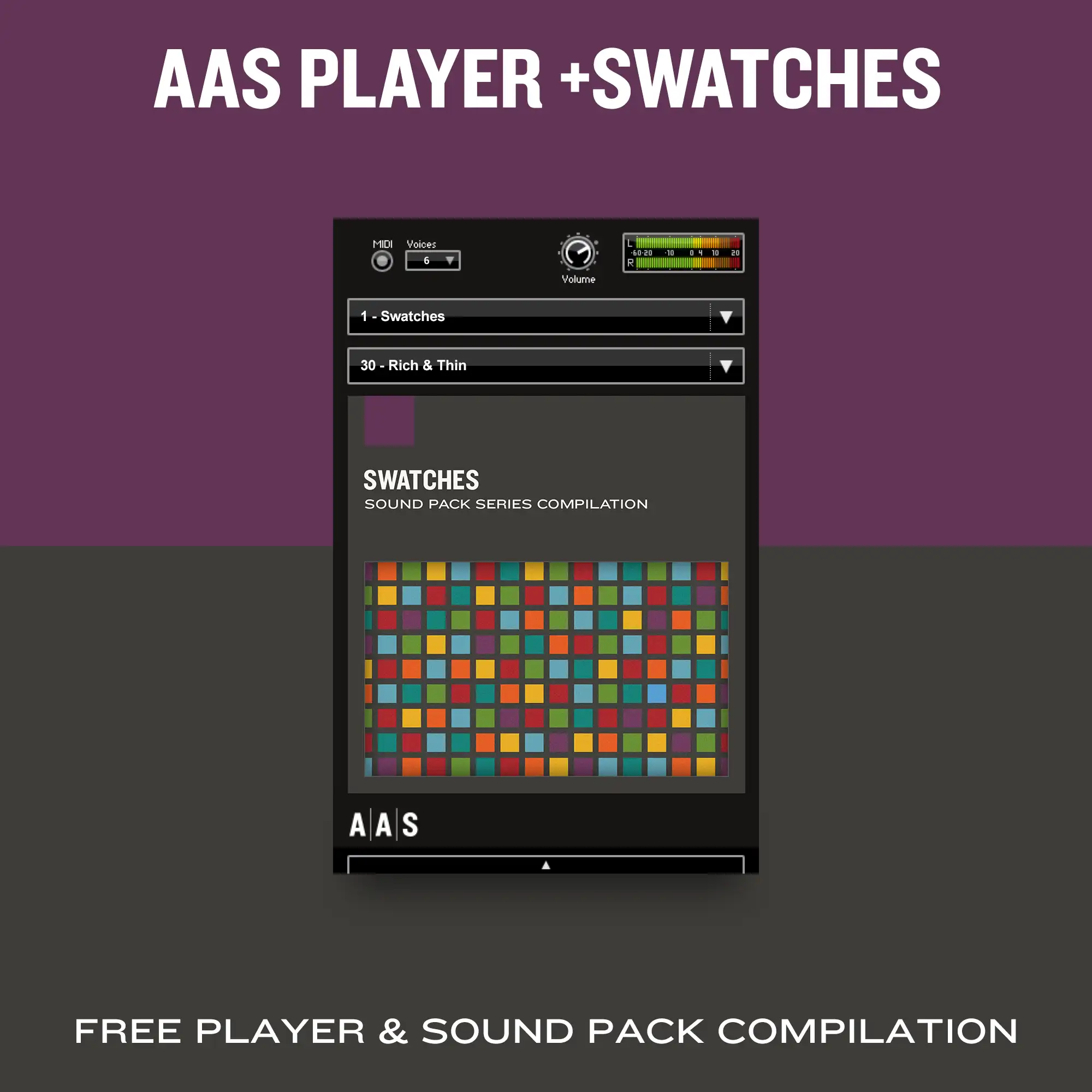
Updated
Sound Pack Series Compilation
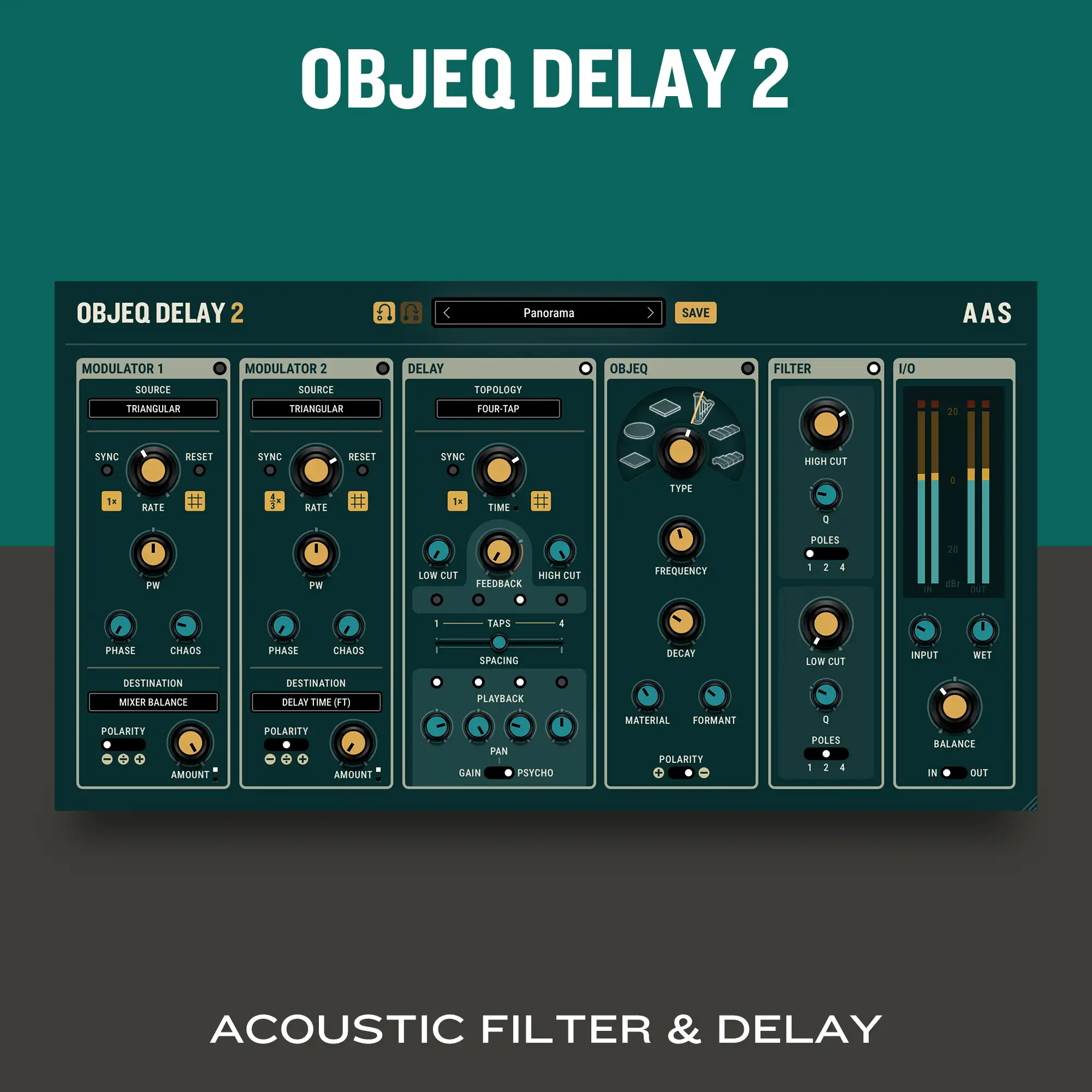
New
Acoustic Filter & Delay
New
Electric Piano
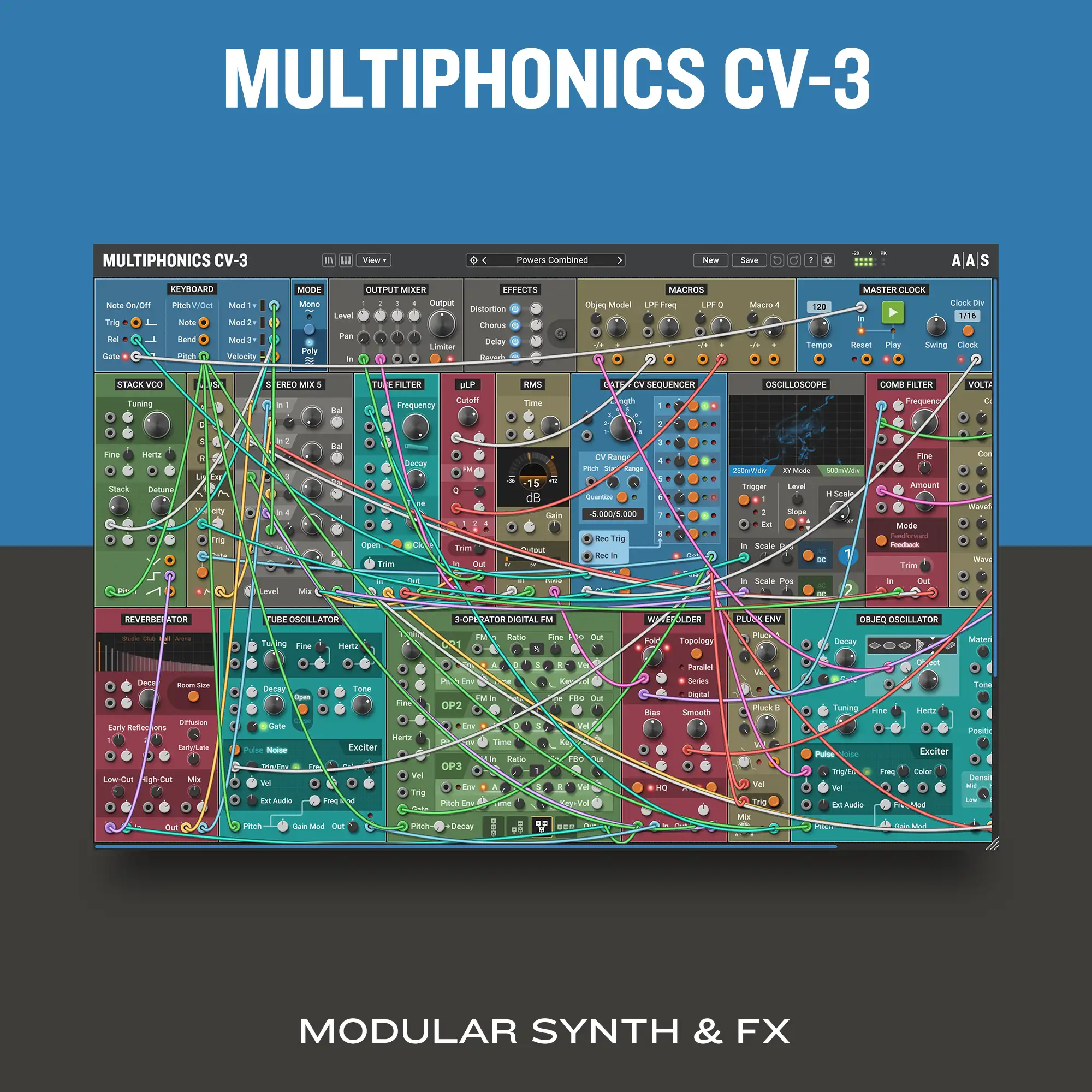
Modular Synth & FX
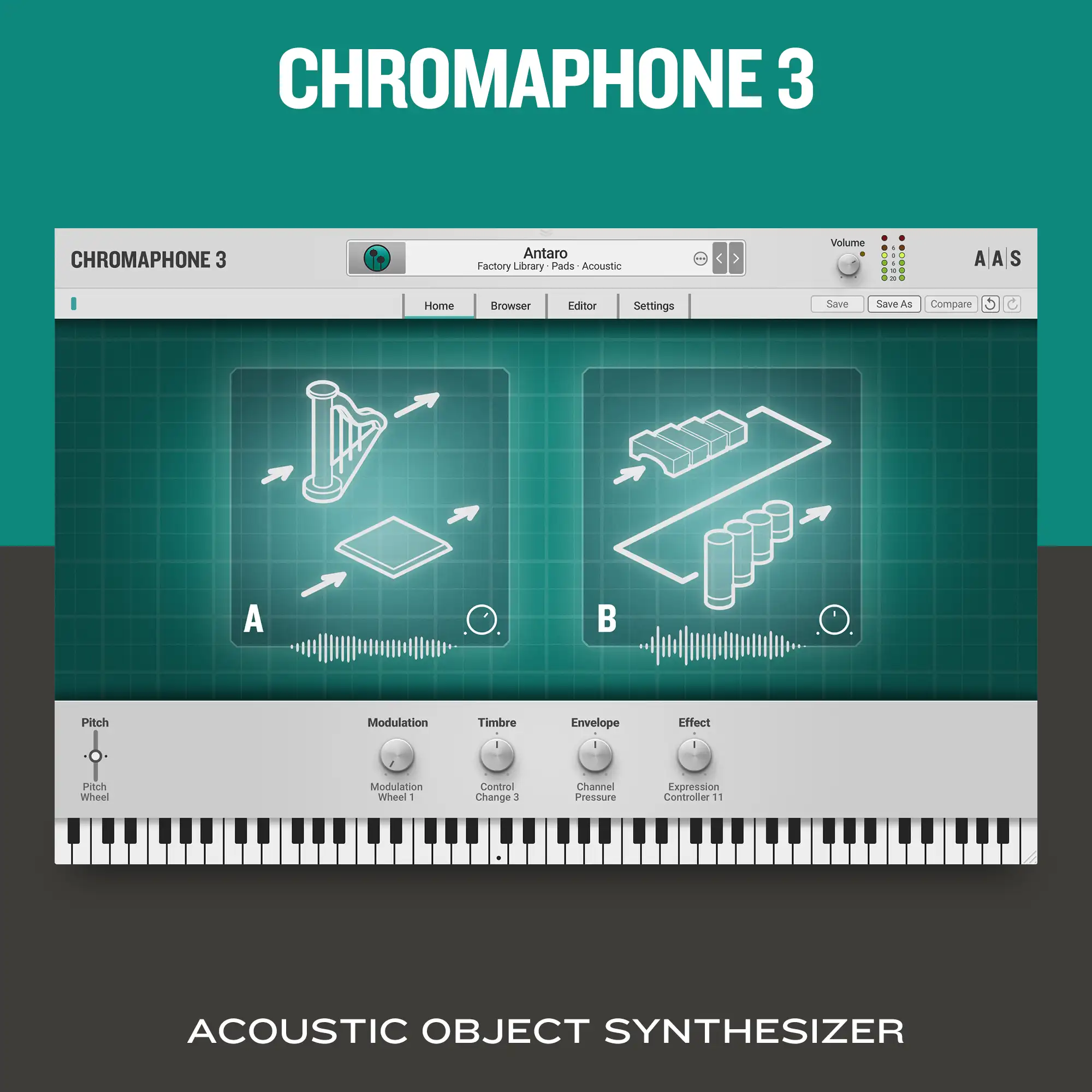
Acoustic Object Synthesizer
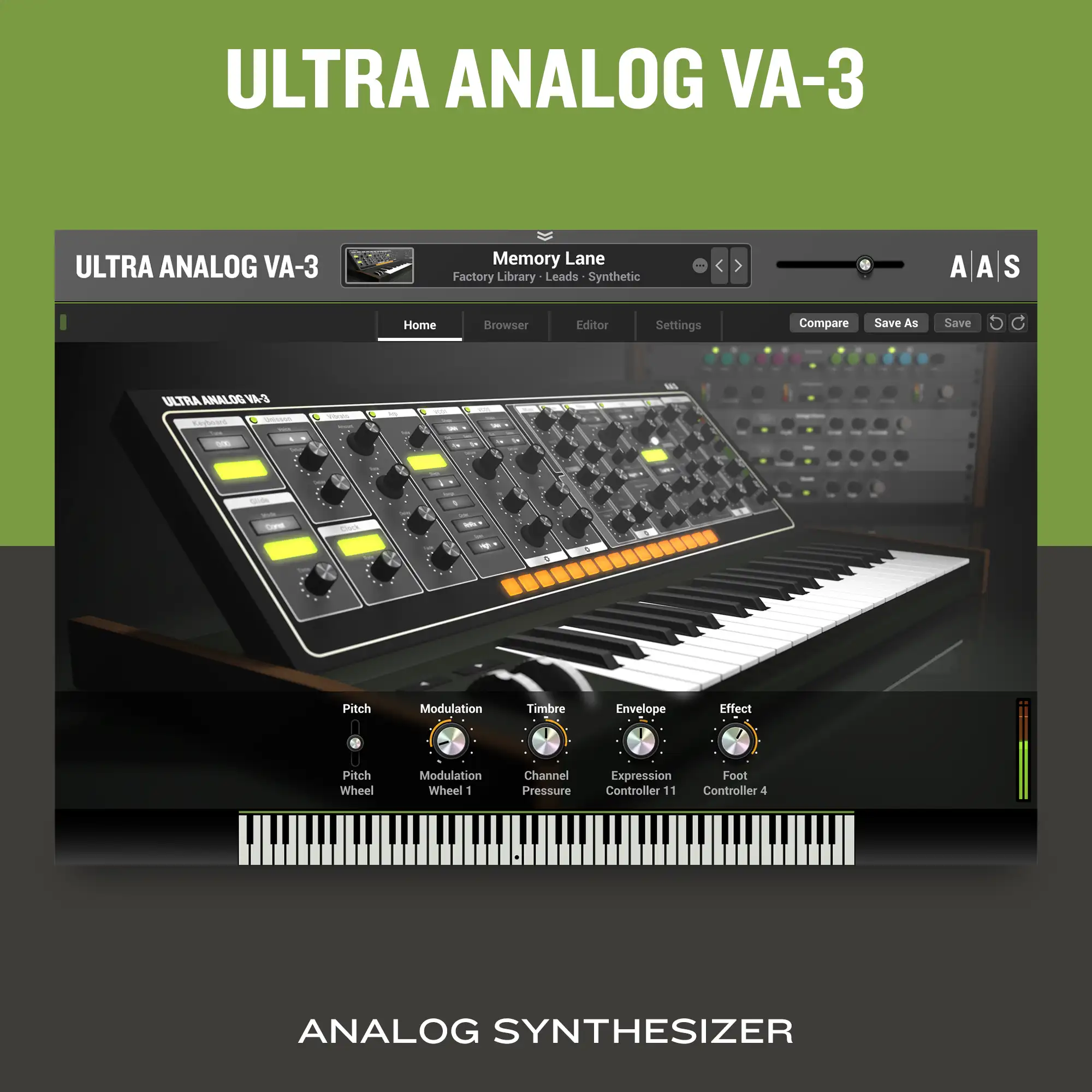
Analog Synthesizer
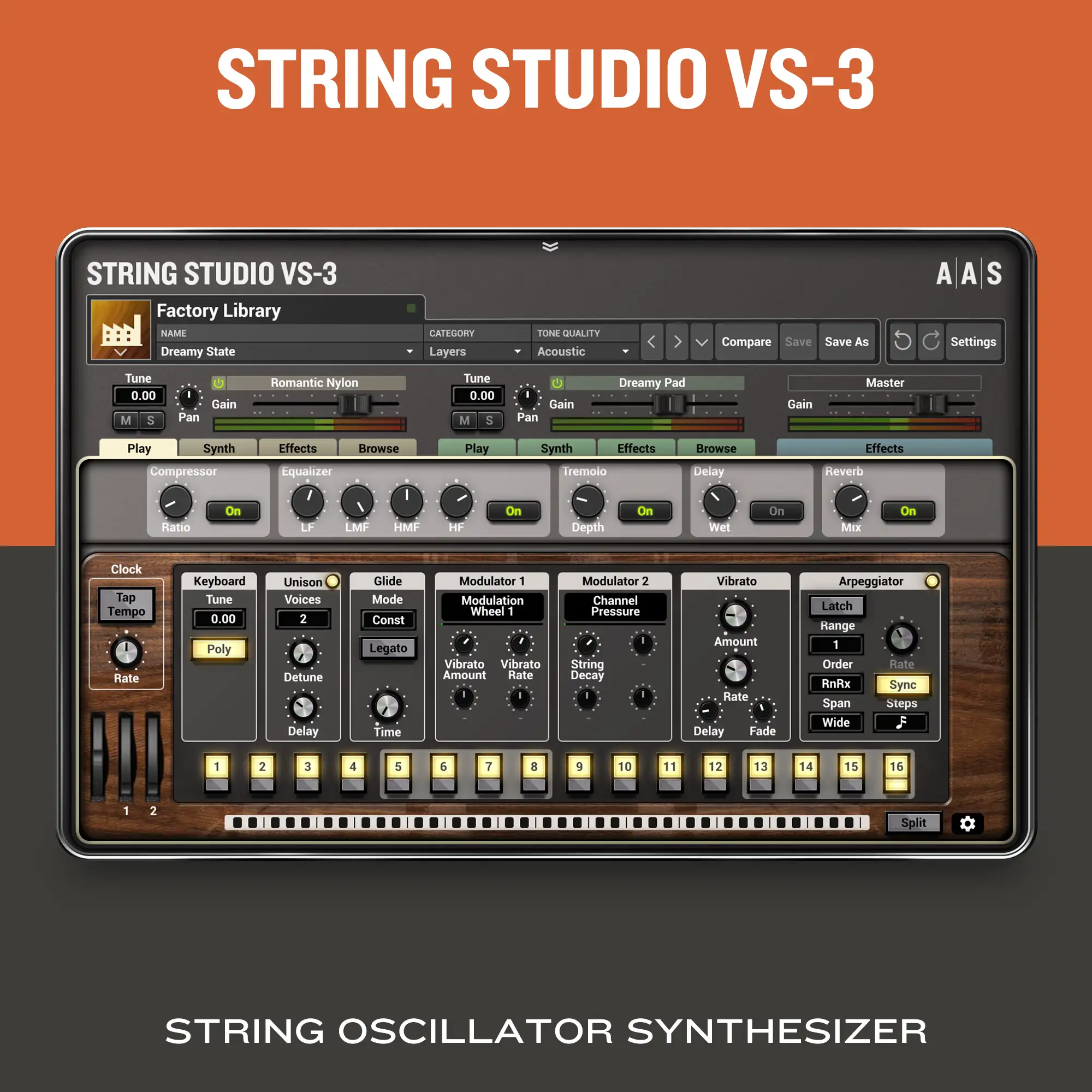
String Oscillator Synthesizer
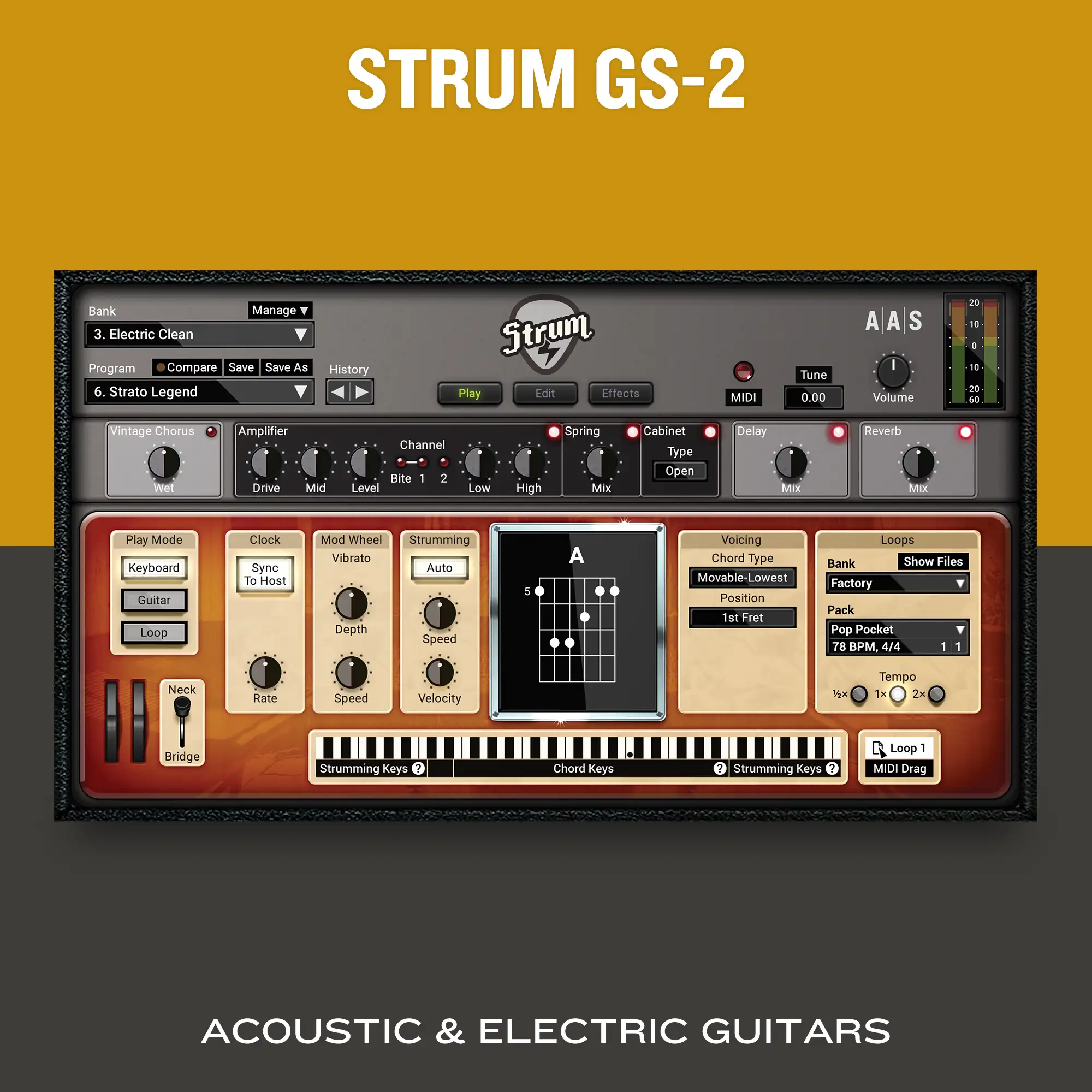
Acoustic and Electric Guitars
Our bundles are the best value for the most demanding musicians.
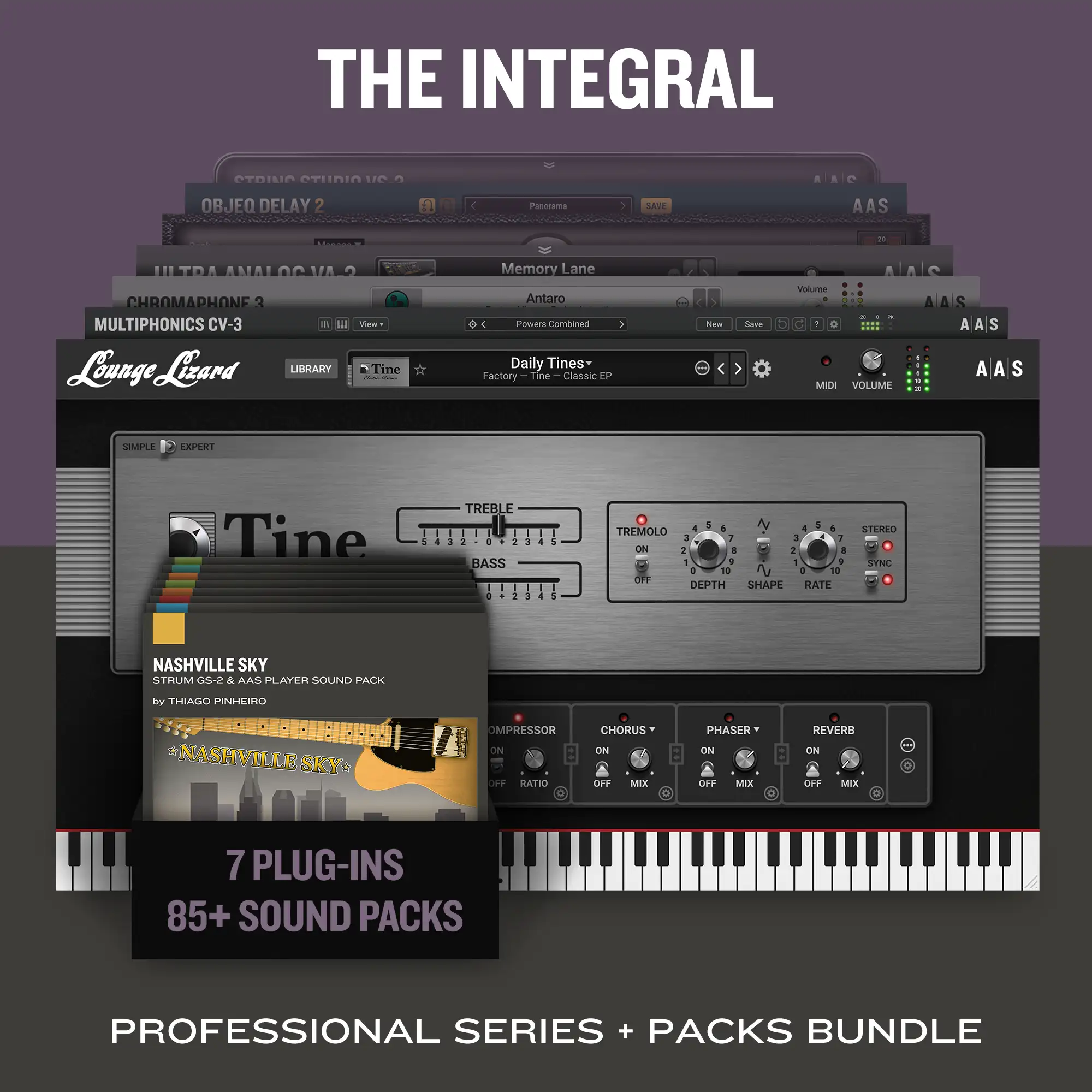
6 synths + 1 effect + 87 sound packs
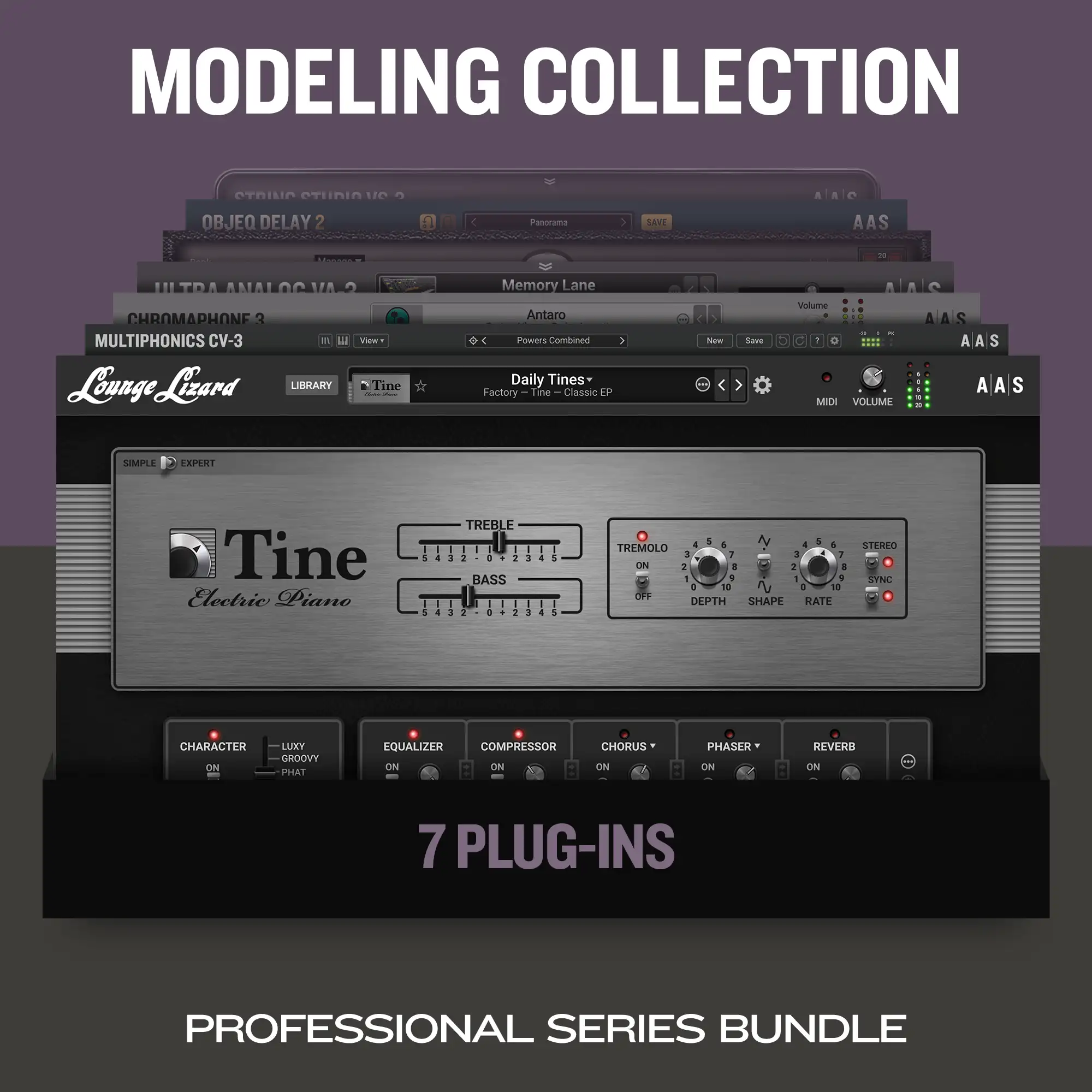
6 synths + 1 effect
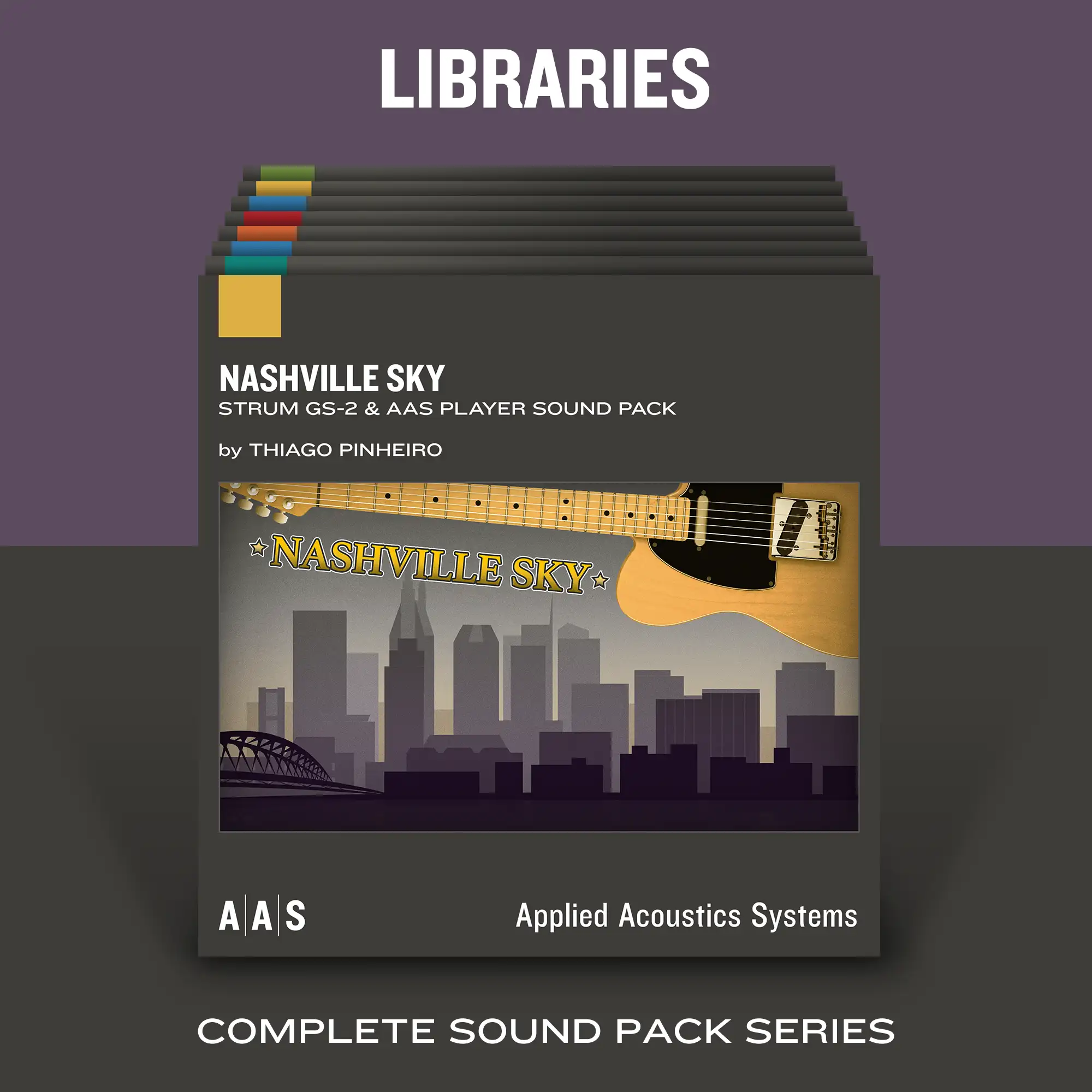
87 sound packs
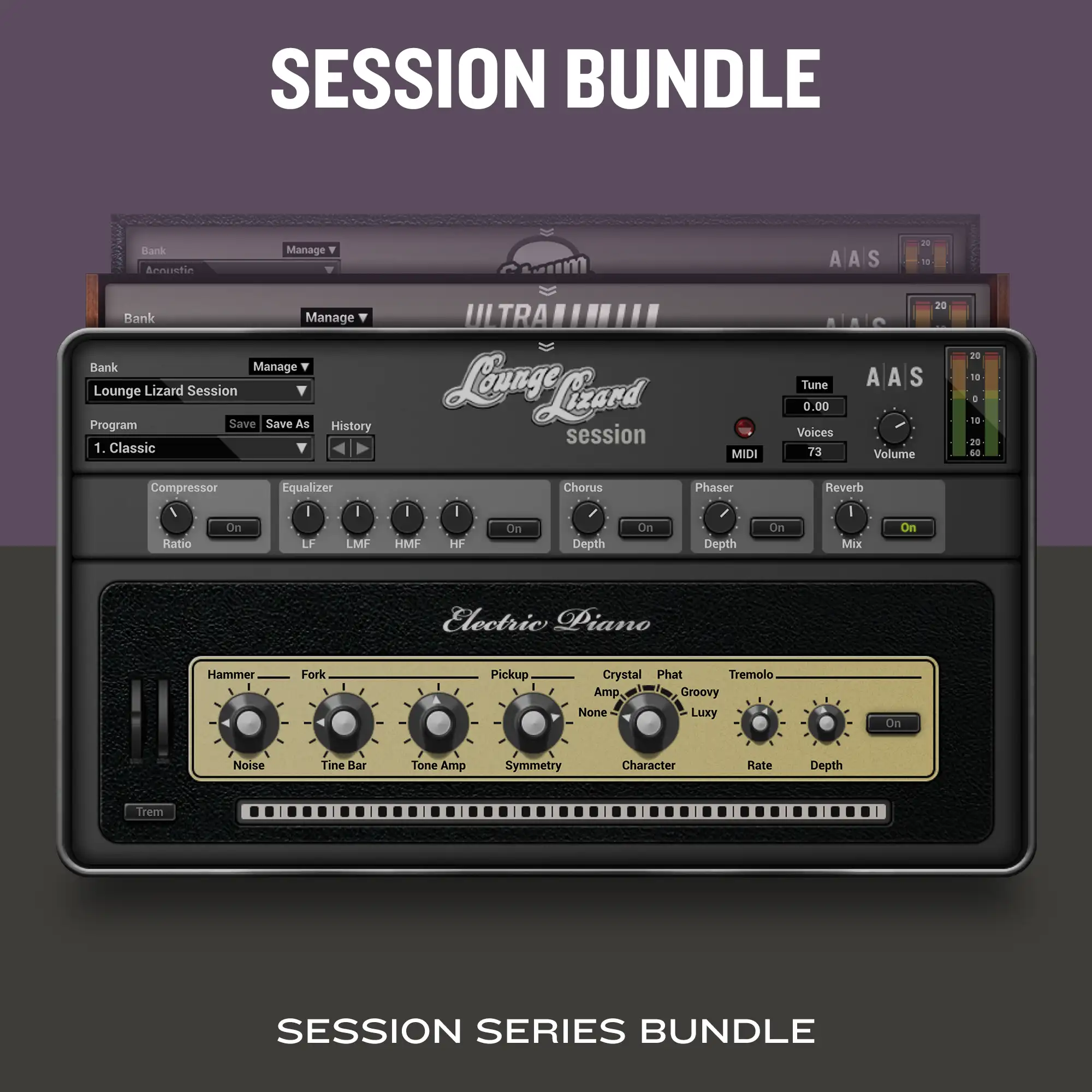
3 starter synths

Six hip hop sound packs
Whether you already own some of our instruments or a few sound packs, we offer multiple options allowing you to upgrade or complete your collections of instruments and sound packs.
Expand your AAS virtual instruments with our vast carefully-crafted selection of sound packs or get one of our +PACKS bundles. The packs can be purchased individually and played via our free AAS Player.
New
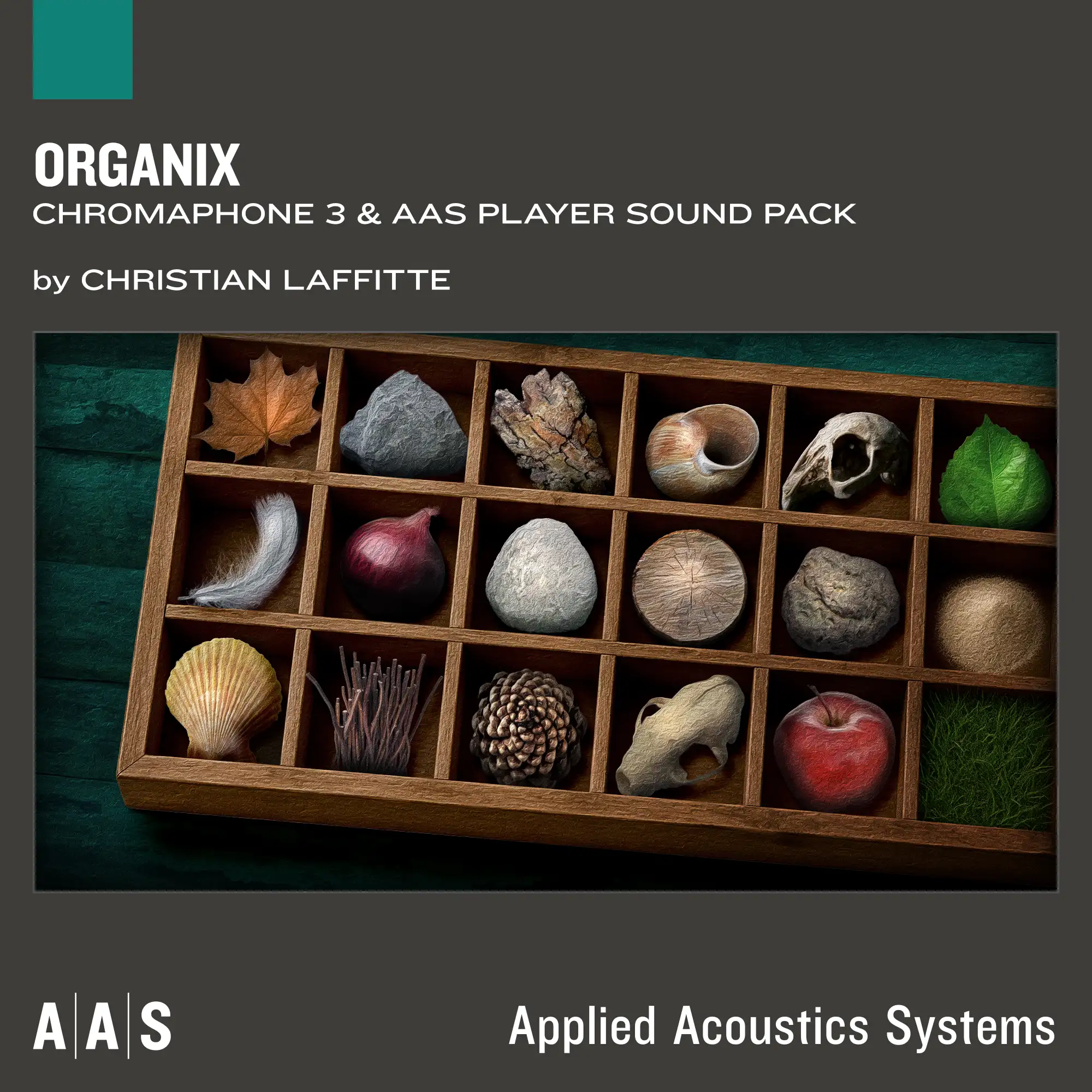
by Christian Laffitte
by ReSeT Ryan Tram
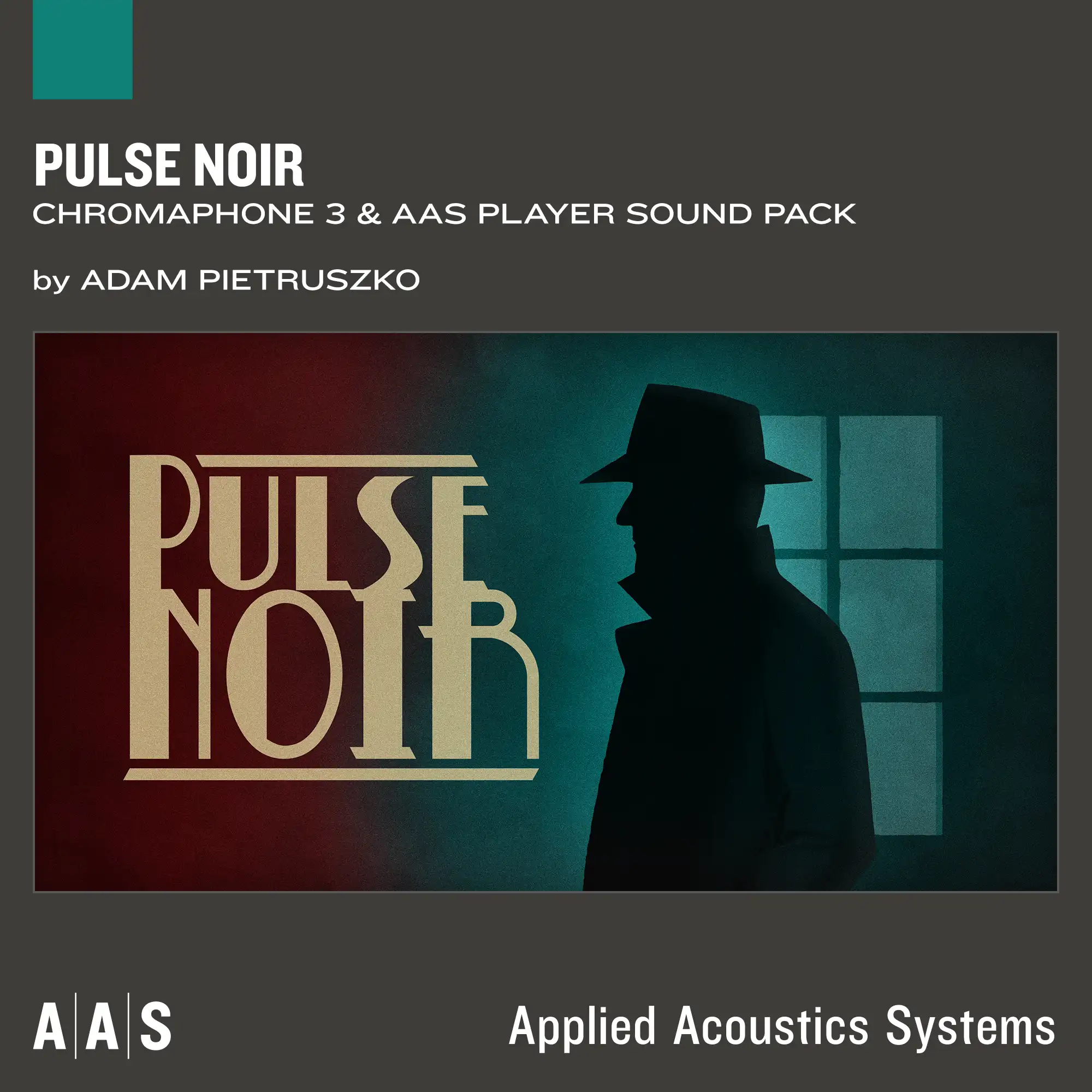
by Adam Pietruszko
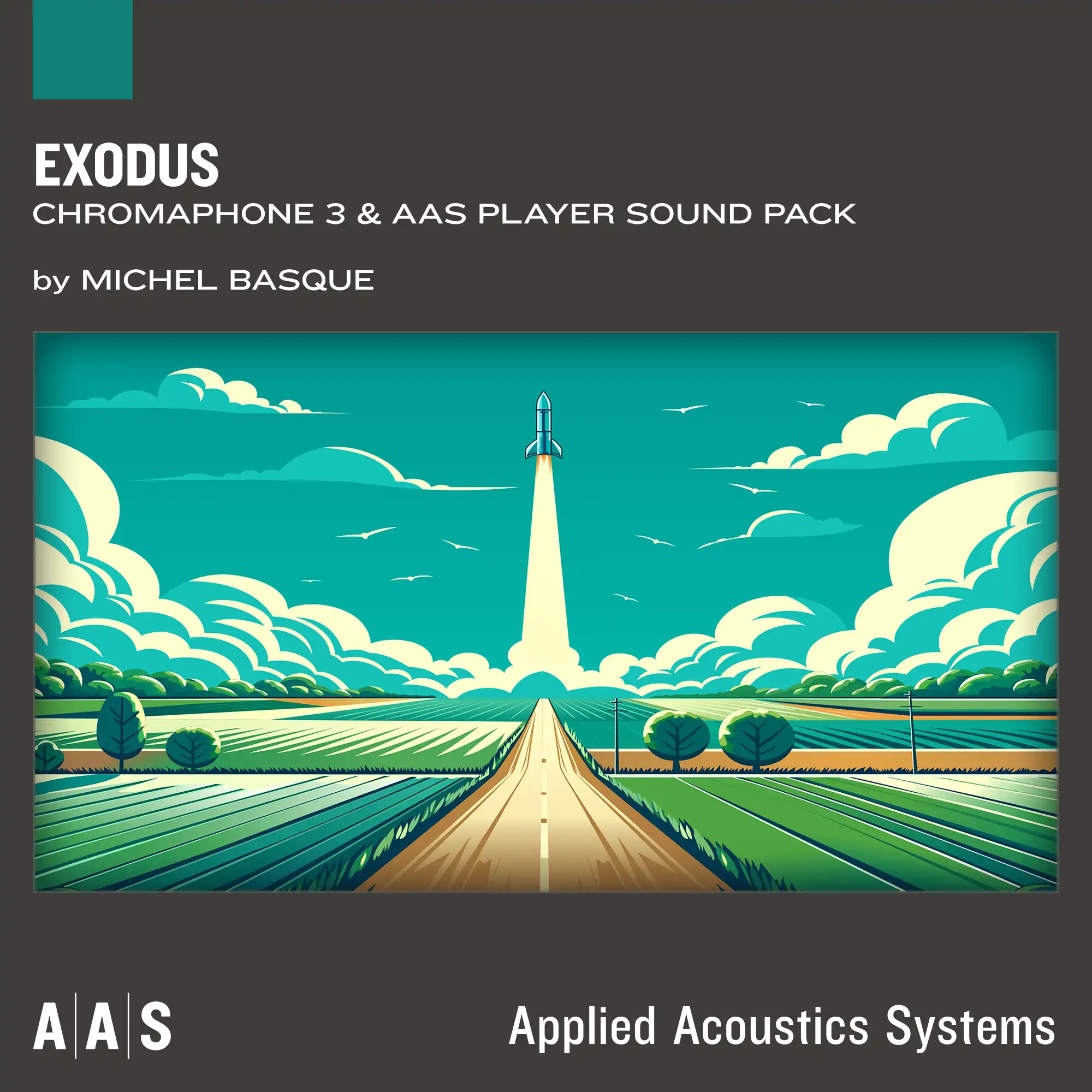
by Michel Basque
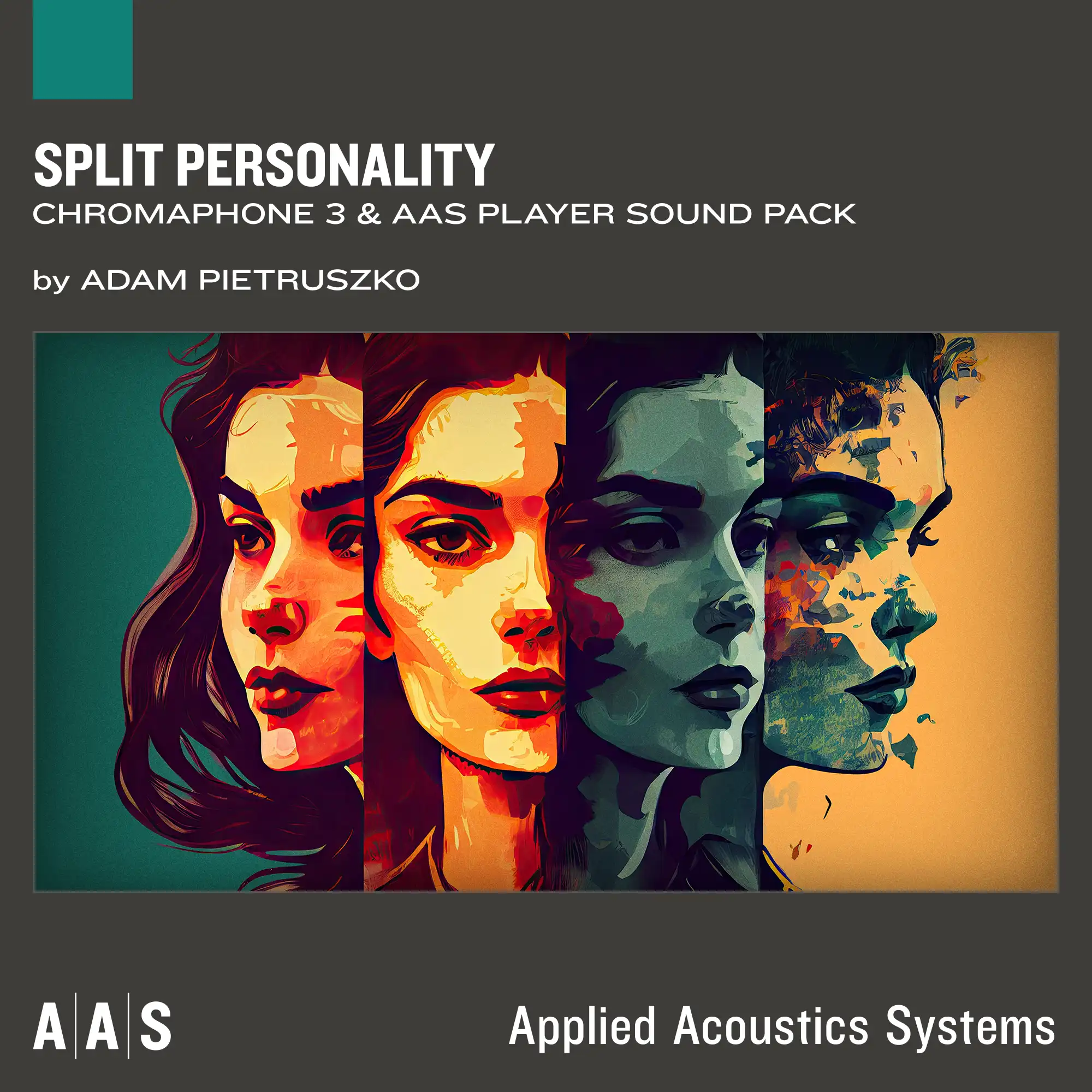
by Adam Pietruszko
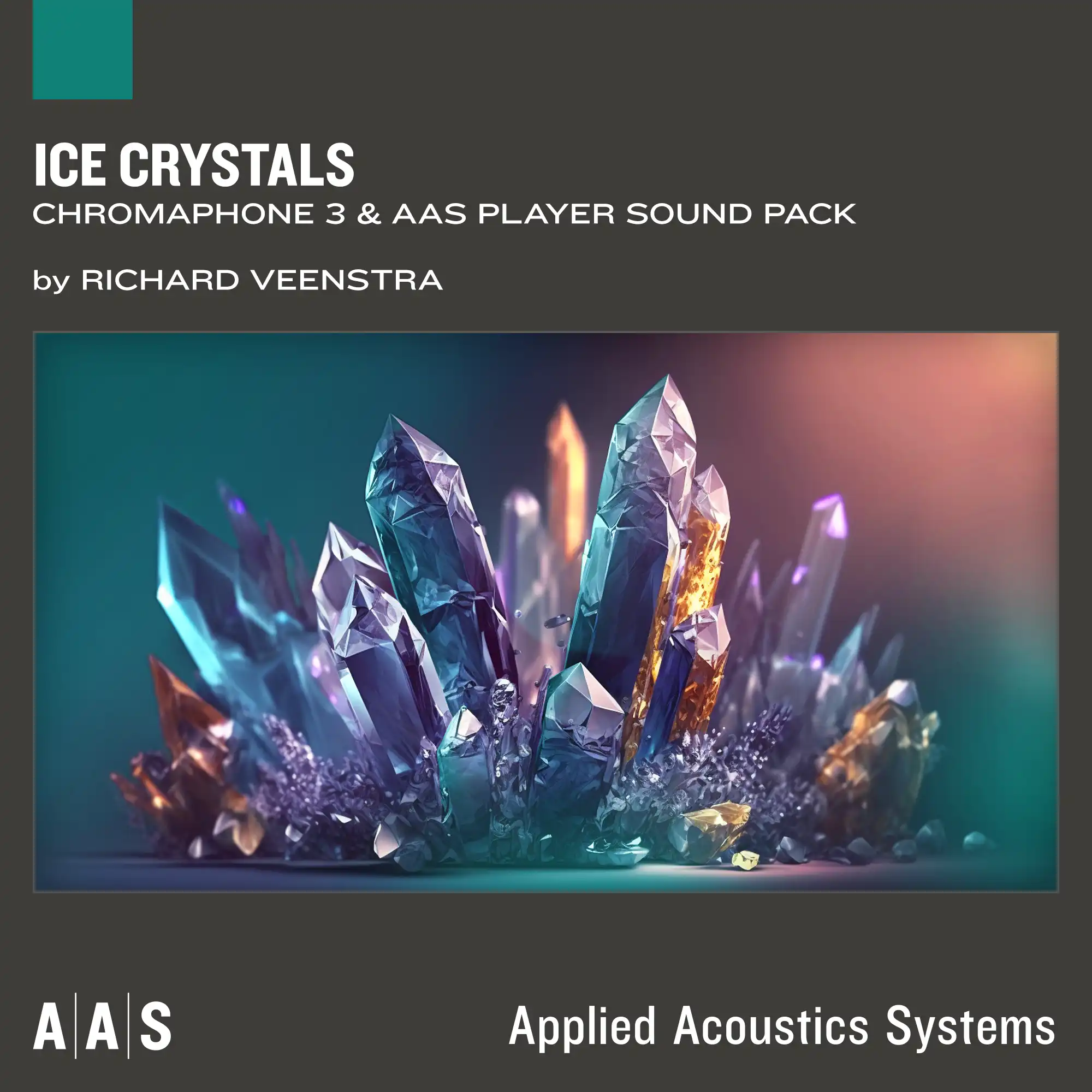
by Richard Veenstra
by Daniel Stawczyk
by Michel Basque
by Amon Tobin
by Adam Pietruszko
by Emeric Zubar
by Niall McCallum
by Francis Preve
by Daniel Stawczyk
by Daniel Stawczyk
by Thiago Pinheiro

by Christian Laffitte
by Daniel Stawczyk
by Richard Devine
by Richard Devine
by Martin Walker
by Simon Stockhausen
New
by Christian Laffitte
by Sean Divine
by Richard Veenstra
by Emeric Zubar
by Christian Laffitte
by Cipryan Bot
by Adam Pietruszko
by Andre Ettema
by Adam Pietruszko
by Daniel Stawczyk
by Richard Devine
by Sean Divine
by Daniel Stawczyk
by Andre Ettema

by Sean Divine
by Deadbeat
by Andre Ettema
by Daniel Stawczyk
by Andre Ettema
by Daniel Stawczyk
by AAS
by AAS
New
by Thiago Pinheiro
by Thiago Pinheiro
by Thiago Pinheiro
by Thiago Pinheiro
by Thiago Pinheiro
by Thiago Pinheiro
by Thiago Pinheiro
by Niall McCallum
by Niall McCallum
by Christian Laffitte

by Yves Frulla
by Niall McCallum
by Niall McCallum
by Yves Frulla
by Niall McCallum
by Yves Frulla
by Christian Laffitte
by Yves Frulla
by Christian Laffitte
by Christian Laffitte
New
by Michel Basque
by Emeric Zubar
by Christian Laffitte
by Cipryan Bot
by Christian Laffitte
by Adam Pietruszko
by Adam Pietruszko
by David of MixbusTV
by Christian Laffitte
by Daniel Stawczyk
by Richard Devine
by Daniel Stawczyk
by David Kristian
by Gregory Simpson

We offer a 30-day money-back guarantee on all orders carried out on our web store—no question asked.

Our custom installers ensure fast installation and authorization so that music remains the priority.

We pride ourself in providing fast, accurate, and friendly customer assistance by our in-house experienced AAS staff.

We craft music software since 1998 and pledge to continue doing so for years to come, and that with the best user experience in mind.
Preparing your download…
This can take up to a minute.